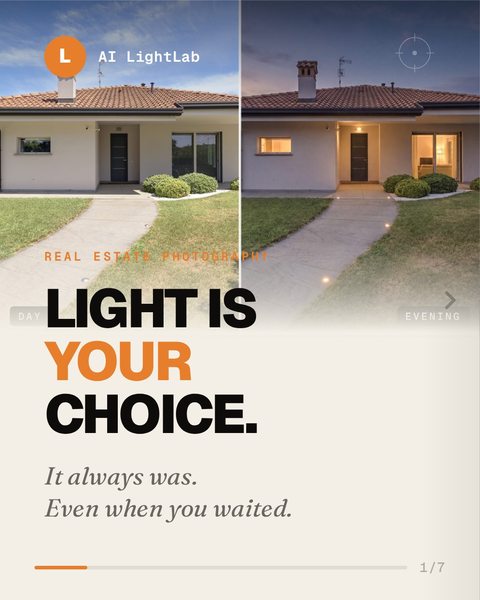
Built for the real estate and architectural photography world · Inside Lightroom Classic
Made in Italy
★★★★★ “It’s fast, produces excellent-quality results, and most importantly, the final images look natural.”Mark Jacobs · Mark Jacobs Productions “Hallucinations are close to zero and I find it particularly useful for real estate photography…”Alessandro · Archphoto “I was totally blown away by how well this AI works: it’s brilliant.”Jessica Alice Hath · alice-foto.de “Fantastic tool which I use mainly for saving grey weather days with sunny exposures.”Arvid Berg · Photographer at Imotiv “Fast smooth and clean, speeds up my workflow”Tommy Andersson · Svensk Fastighetsförmedling

Complete light modification in one click, right inside Lightroom.

The first AI enhancement plugin native to Adobe Lightroom Classic. Select photos, pick presets, keep editing — AI handles light, retouch, variations and batch consistency in the background. Generated files land in your catalog with the original untouched. Built by a working real-estate photographer.

2K · 4K · 8K AI output
Lightroom Native Plugin, not a web app
Batch Multi-photo
Consistent Light Mood locked across the whole batch
Consistent Retouch Engine Coherent details, shot to shot
Live · inside Lightroom
Select, click, done.
Live demo Autoplay · muted loop
LIVE · POWERED BY REAL USERS
3,758
Total Generations
66
AI Presets
44
Active Pros

What it does.

The tool every property photographer has always wanted — finally inside Lightroom. Control the light on any shot, empty a house in a click, fix the weather after the shoot is over. Select multiple presets at once and the AI generates every version automatically. Or write a custom prompt for total creative control.

01 Available
Light modification
twilight · golden hour · blue hour · sunrise · midday

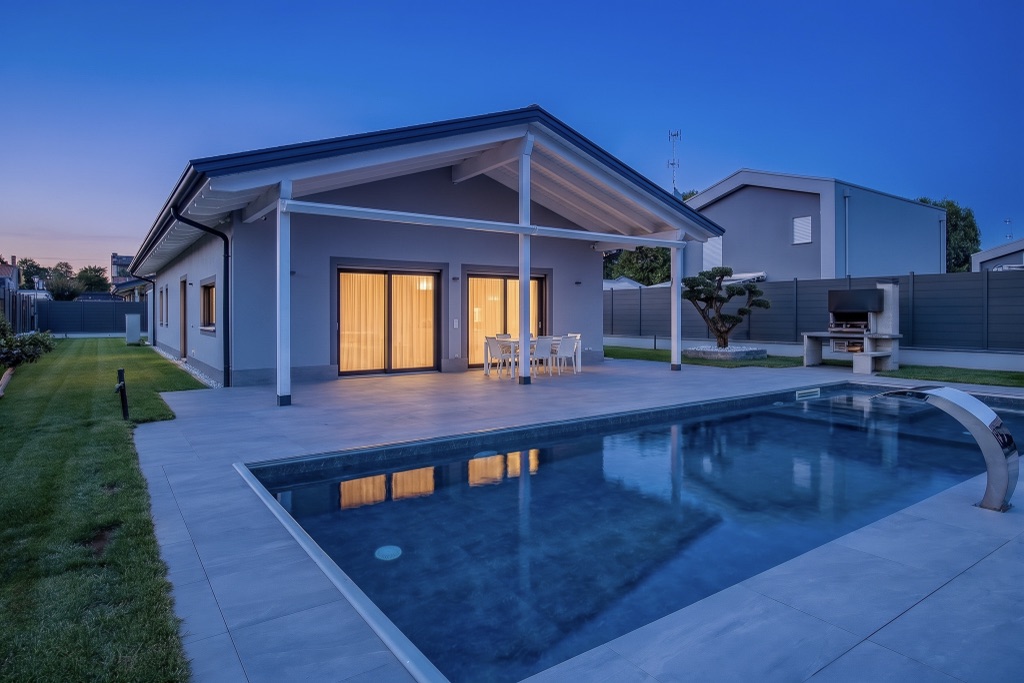
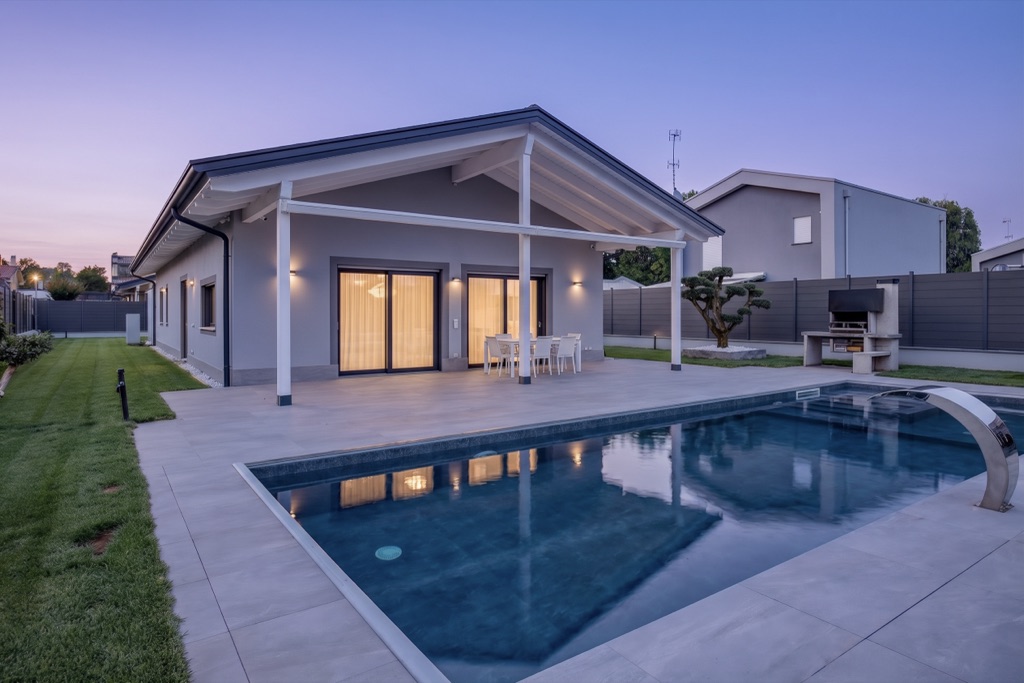
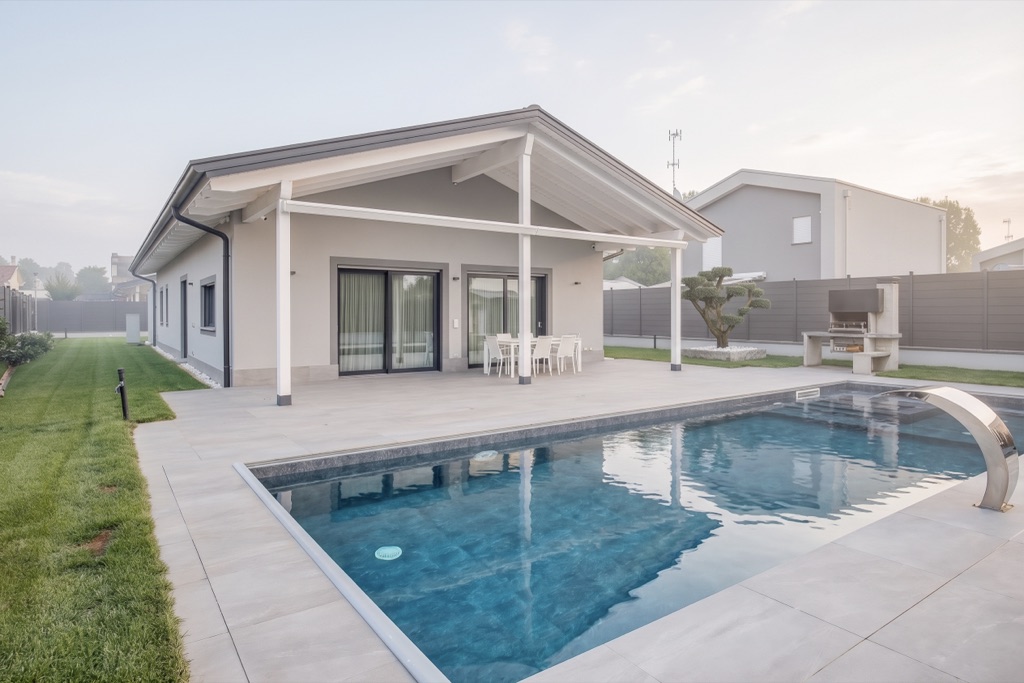
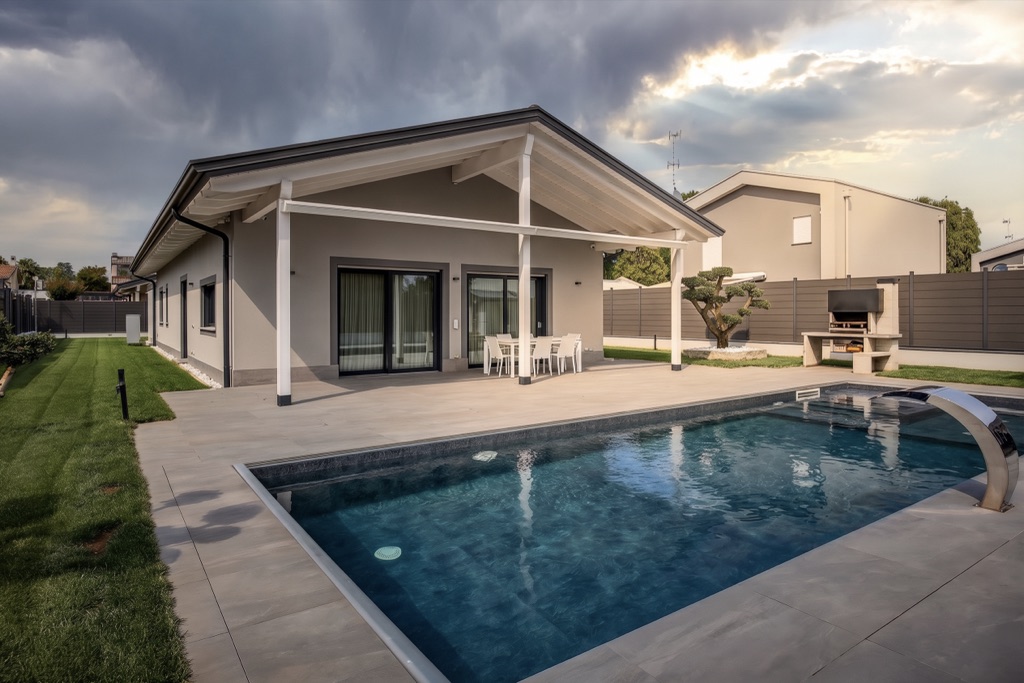
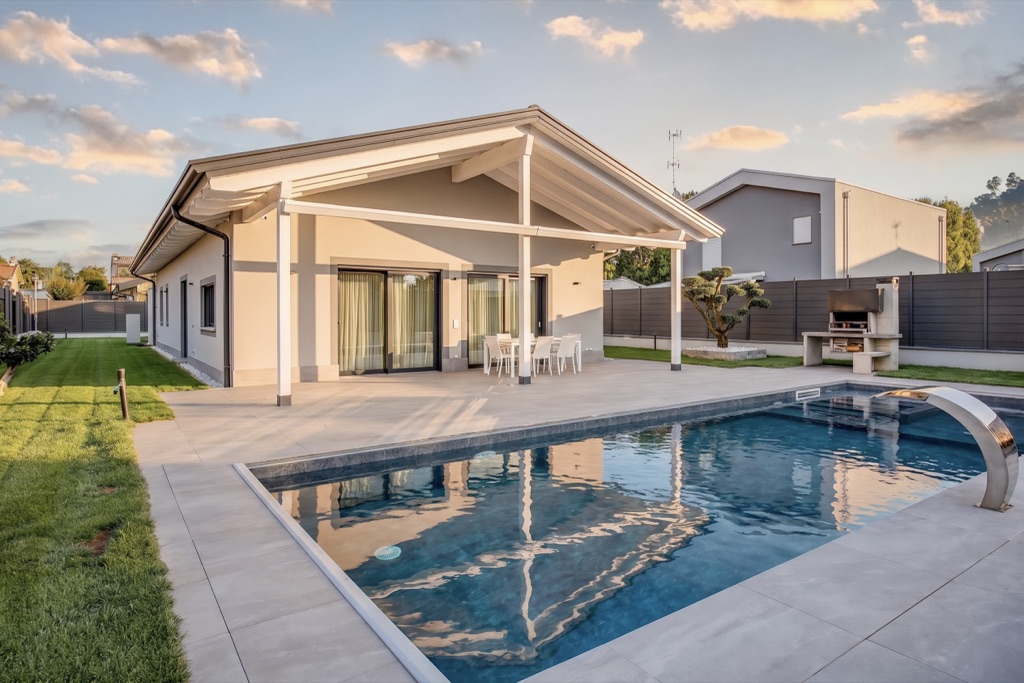
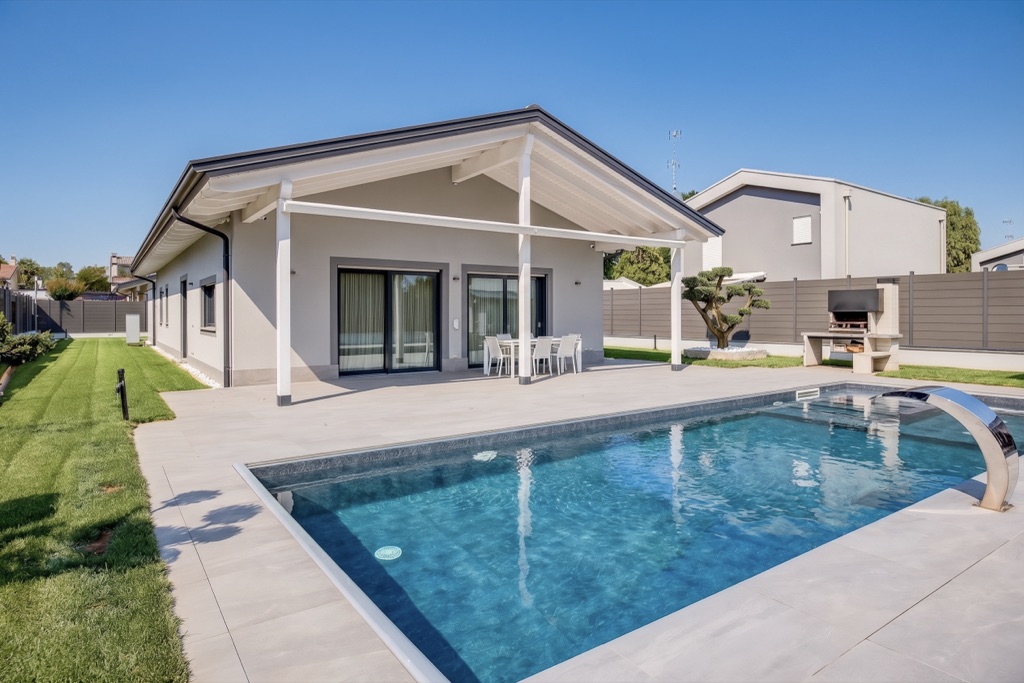
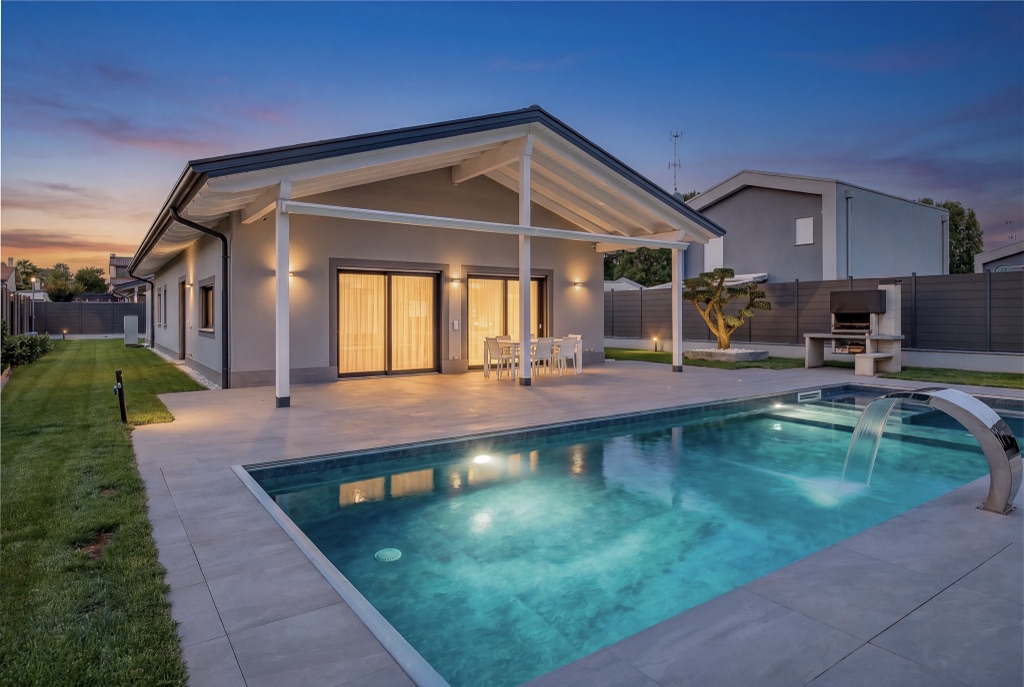
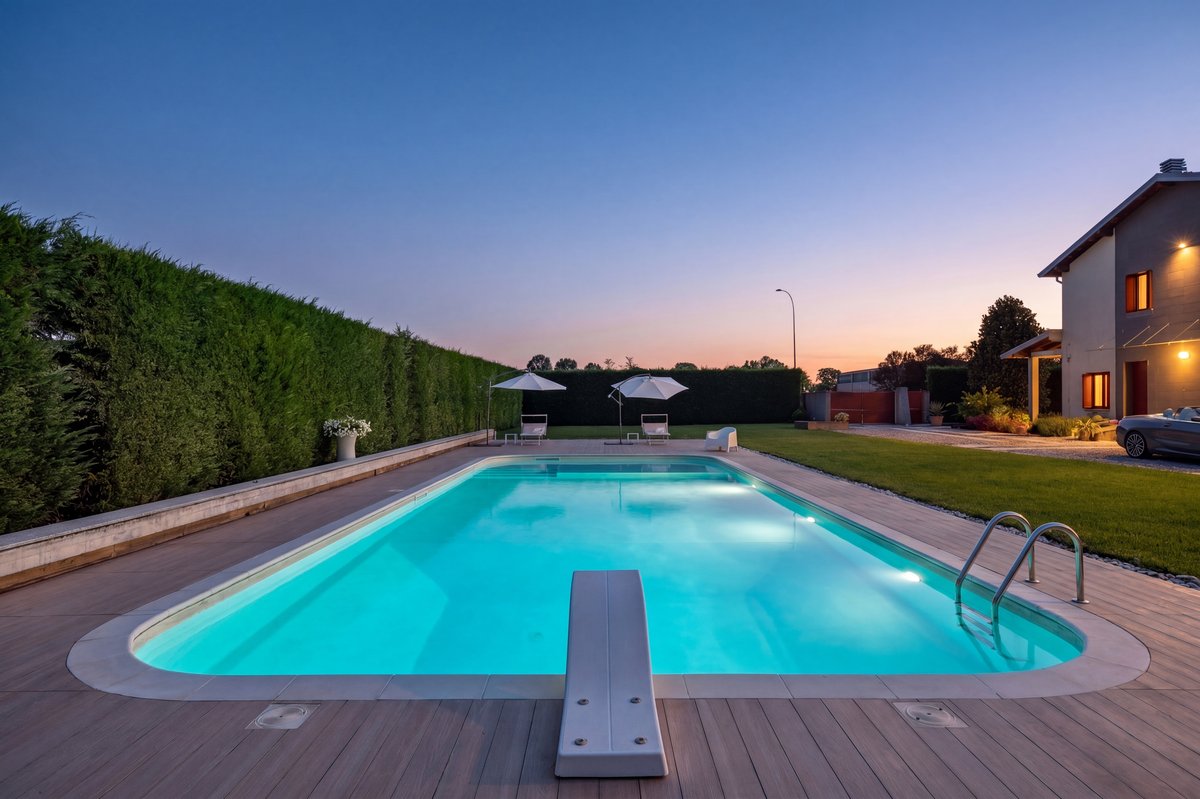
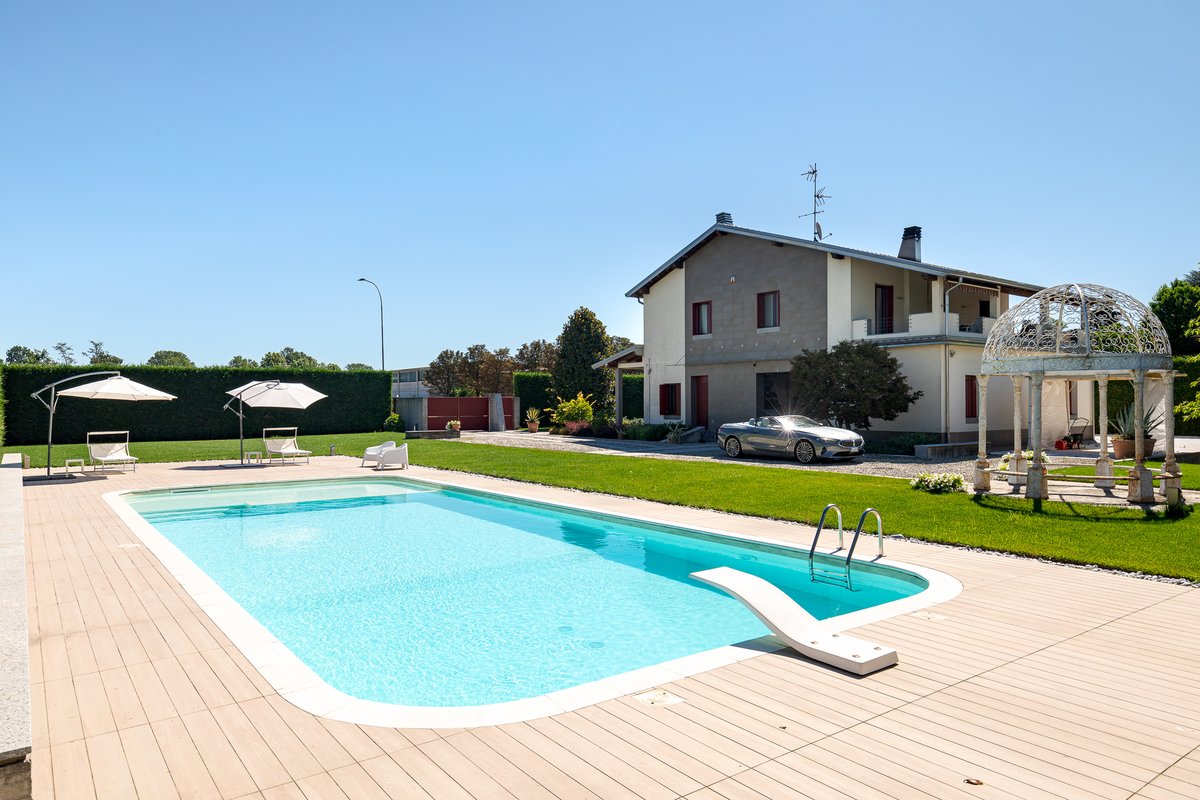
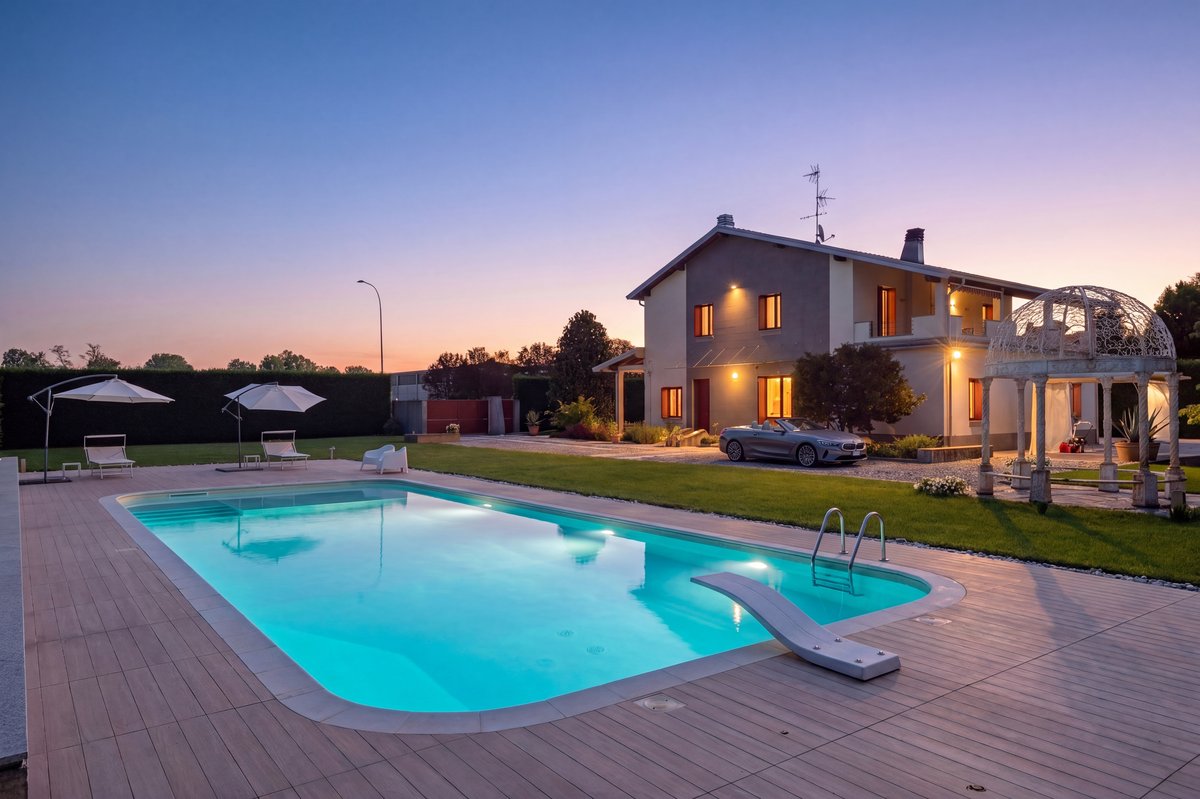
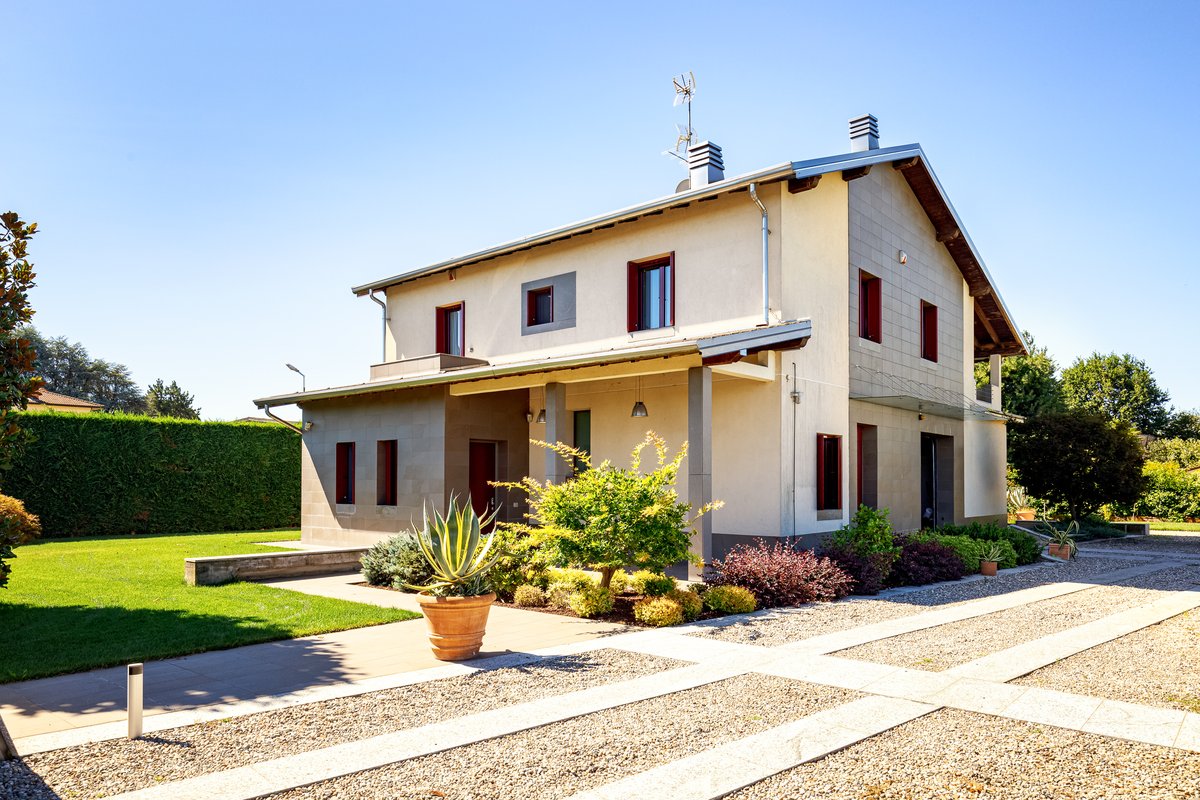
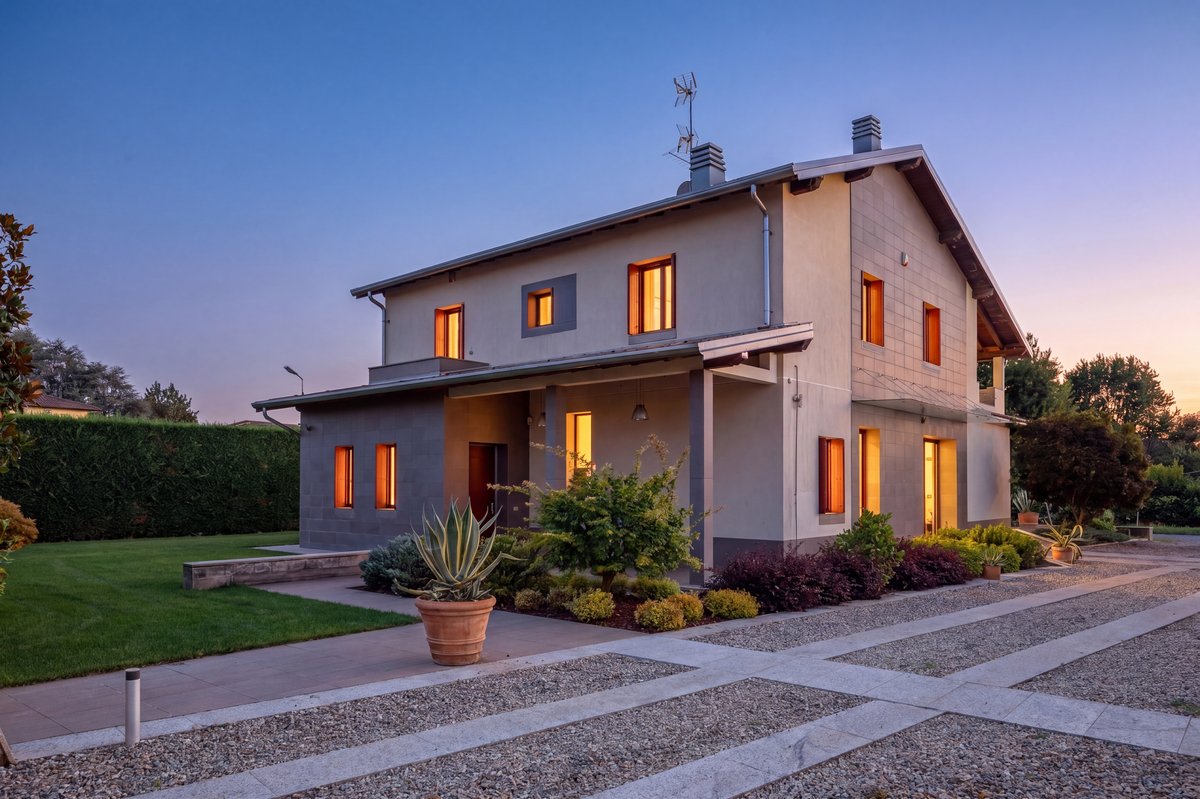
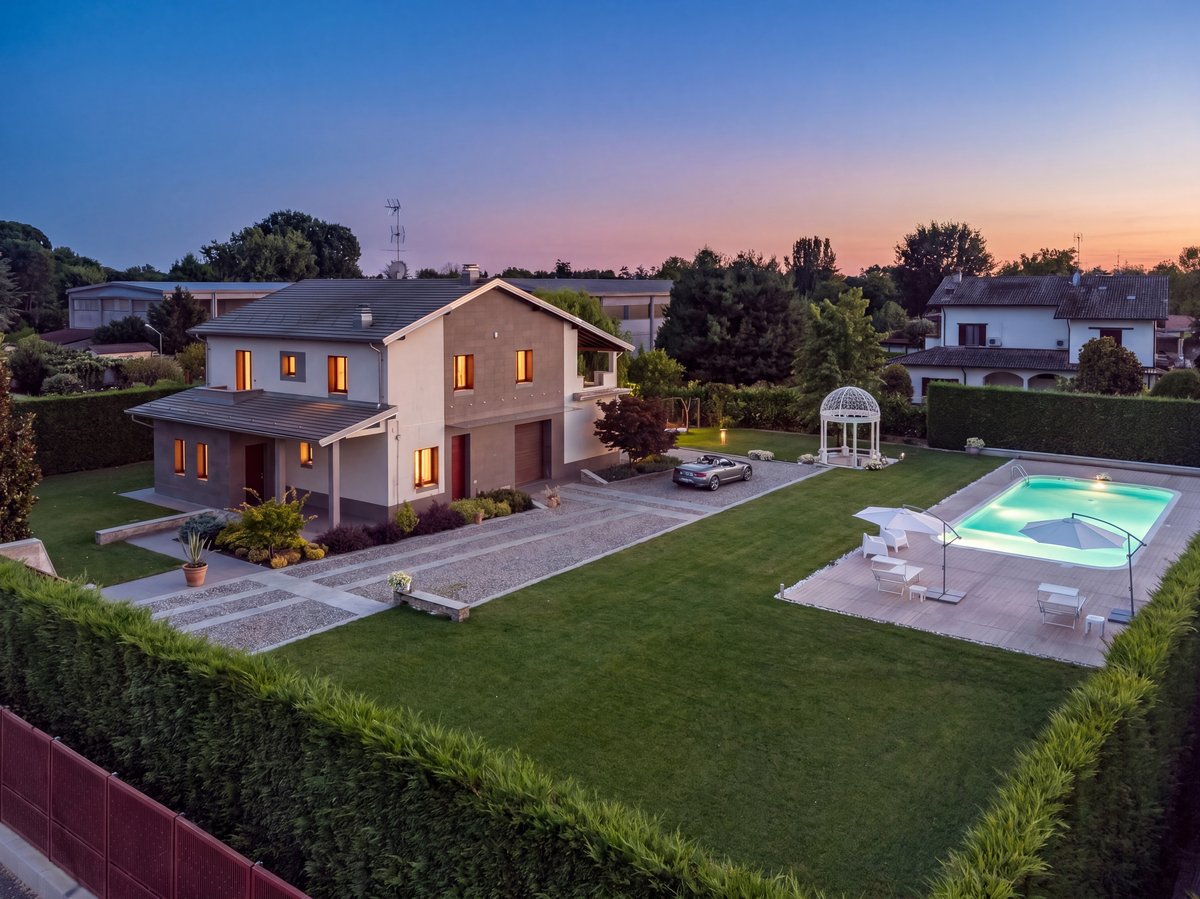
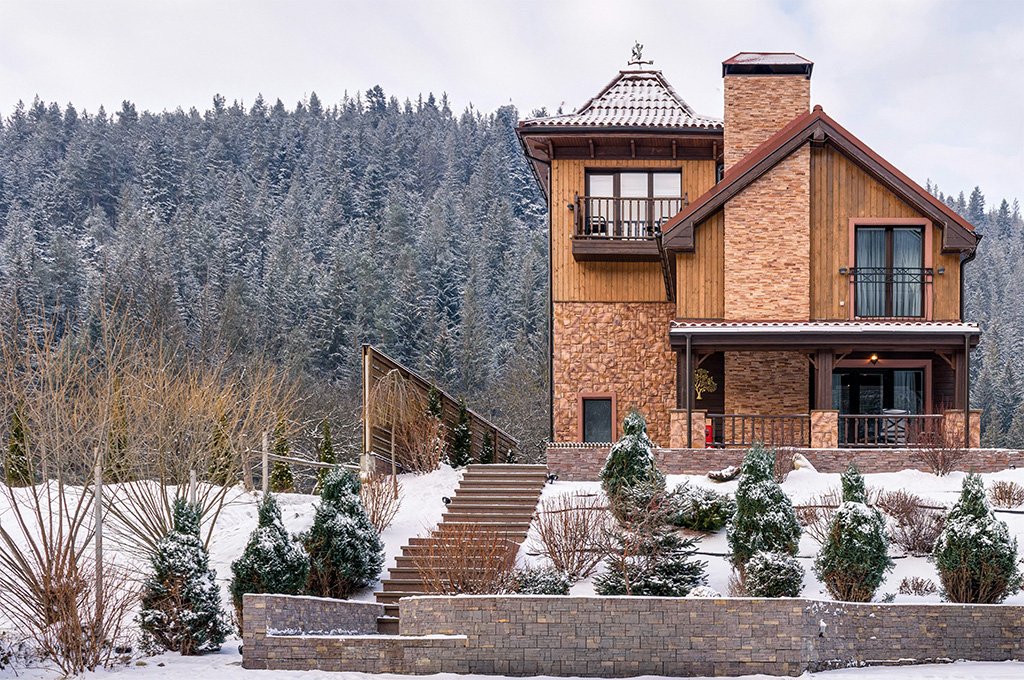
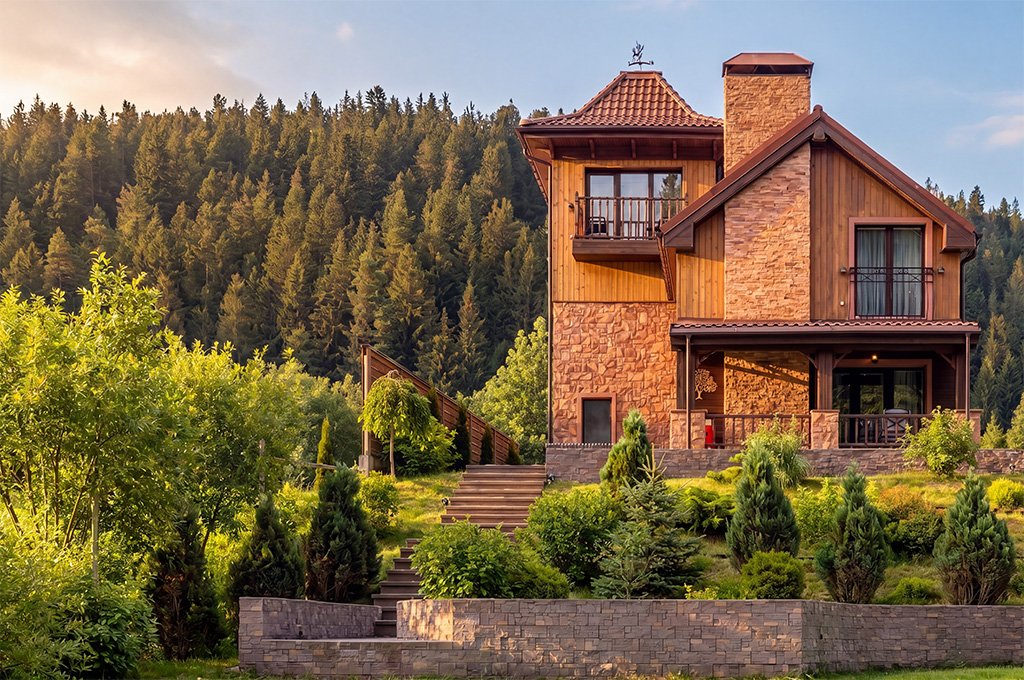
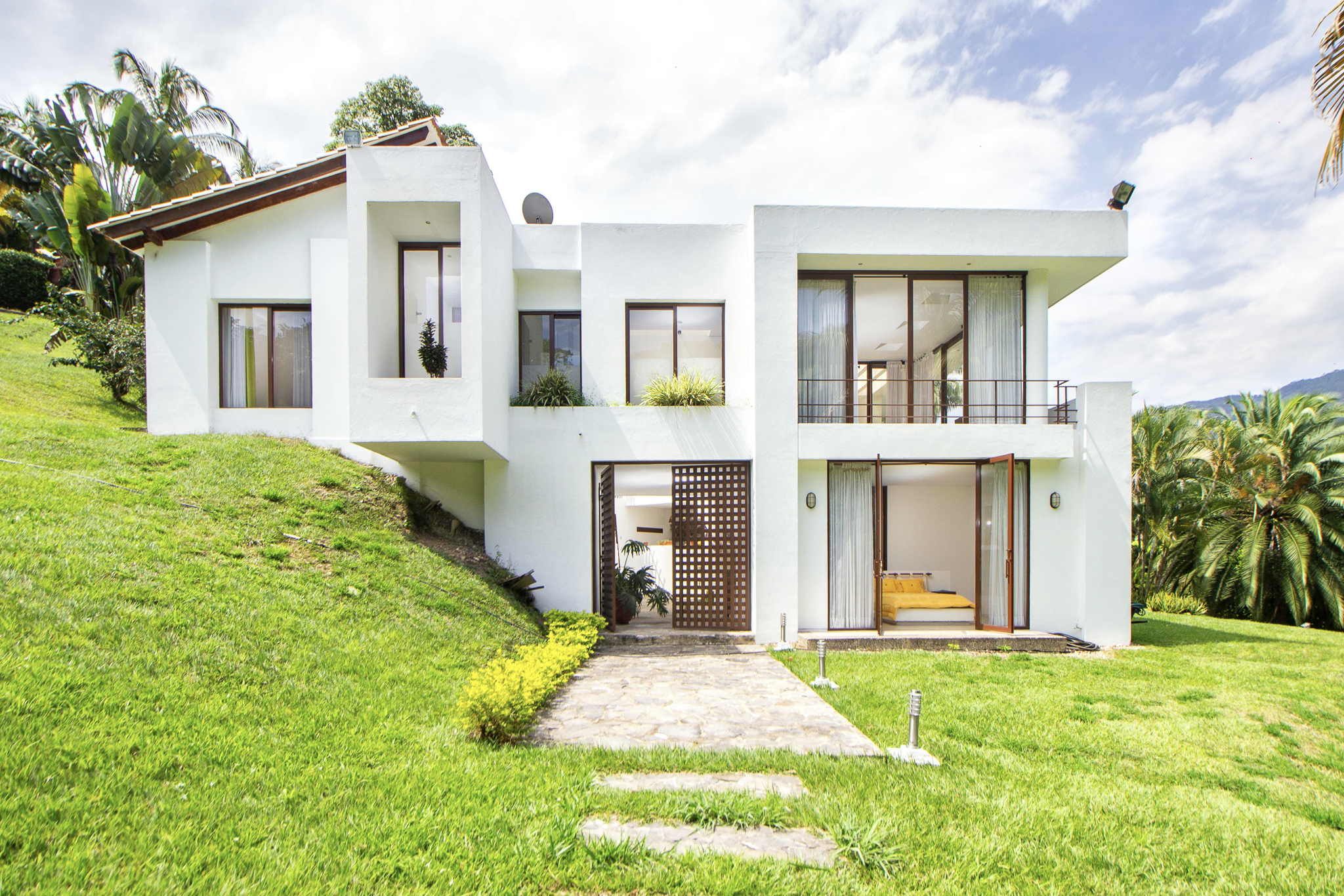
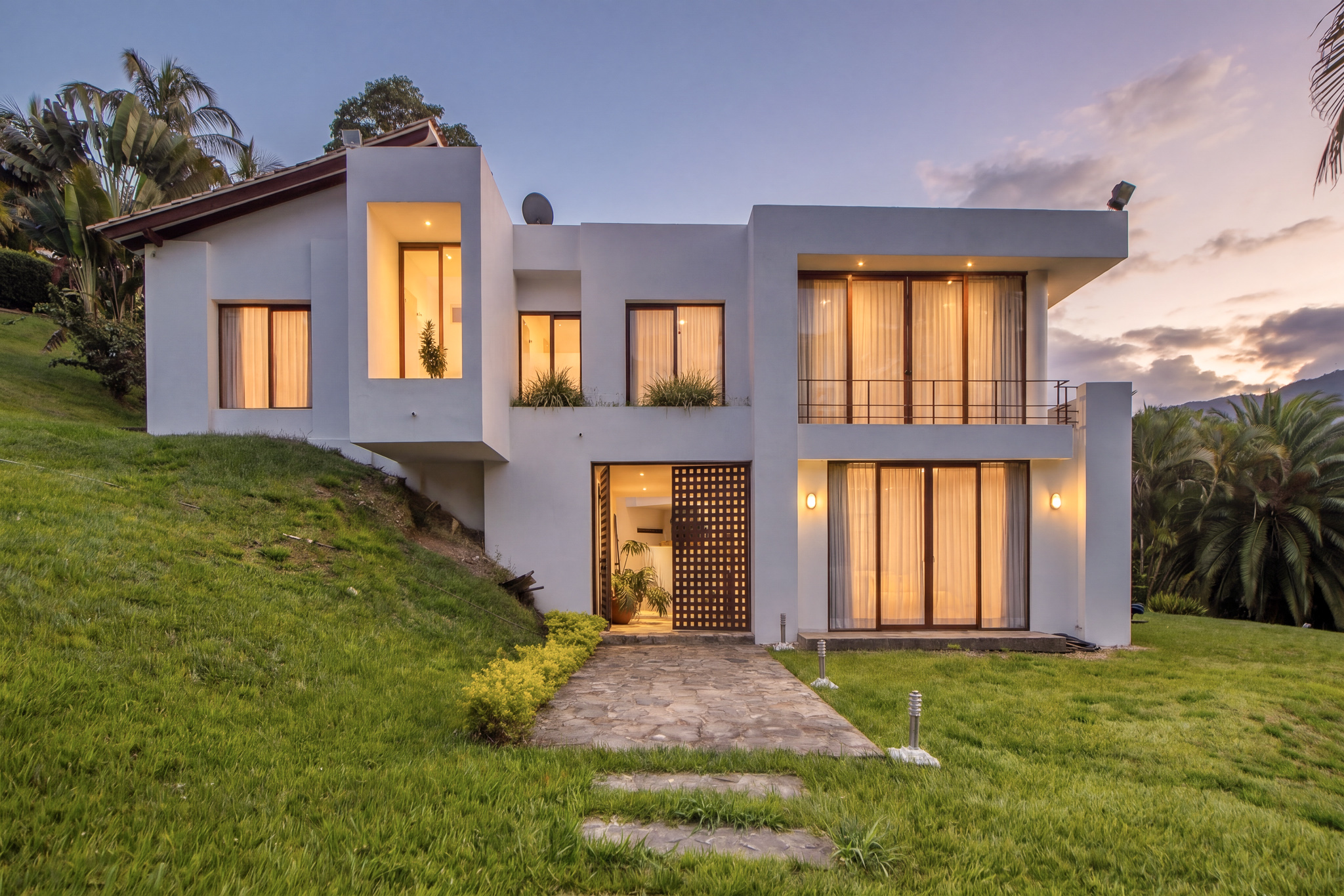
Turn a flat midday shot into twilight, golden hour or blue hour — warm ambient glow, lit windows, sky gradient. No Photoshop compositing, no waiting three hours on location for the light to turn.
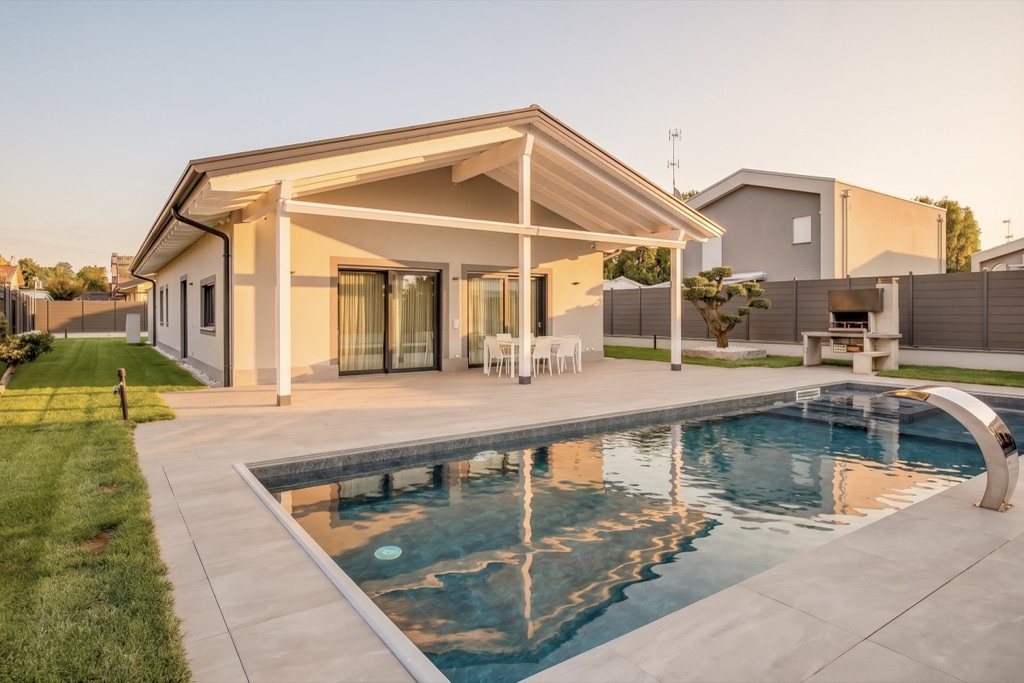
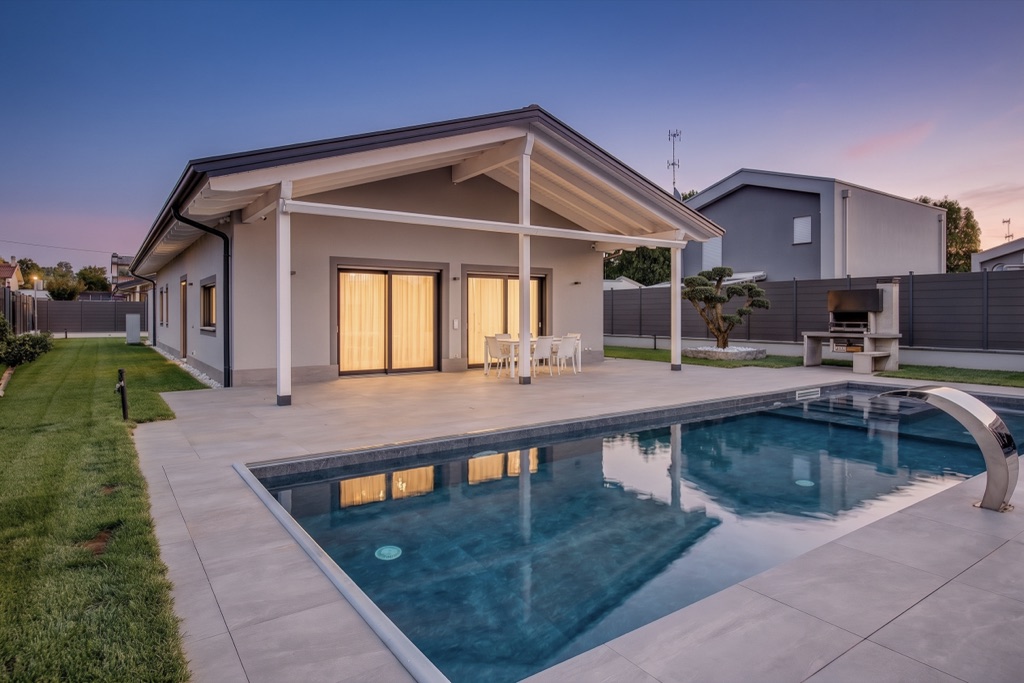
Exterior — golden hour Exterior — twilight hero Exterior — blue hour Exterior — lavender blue hour Exterior — misty morning Exterior — after storm Exterior — low warm sun Exterior — clear midday Exterior — cinematic twilight pool
02 Available
Retouch automations
declutter · empty structure · bed reset · season change

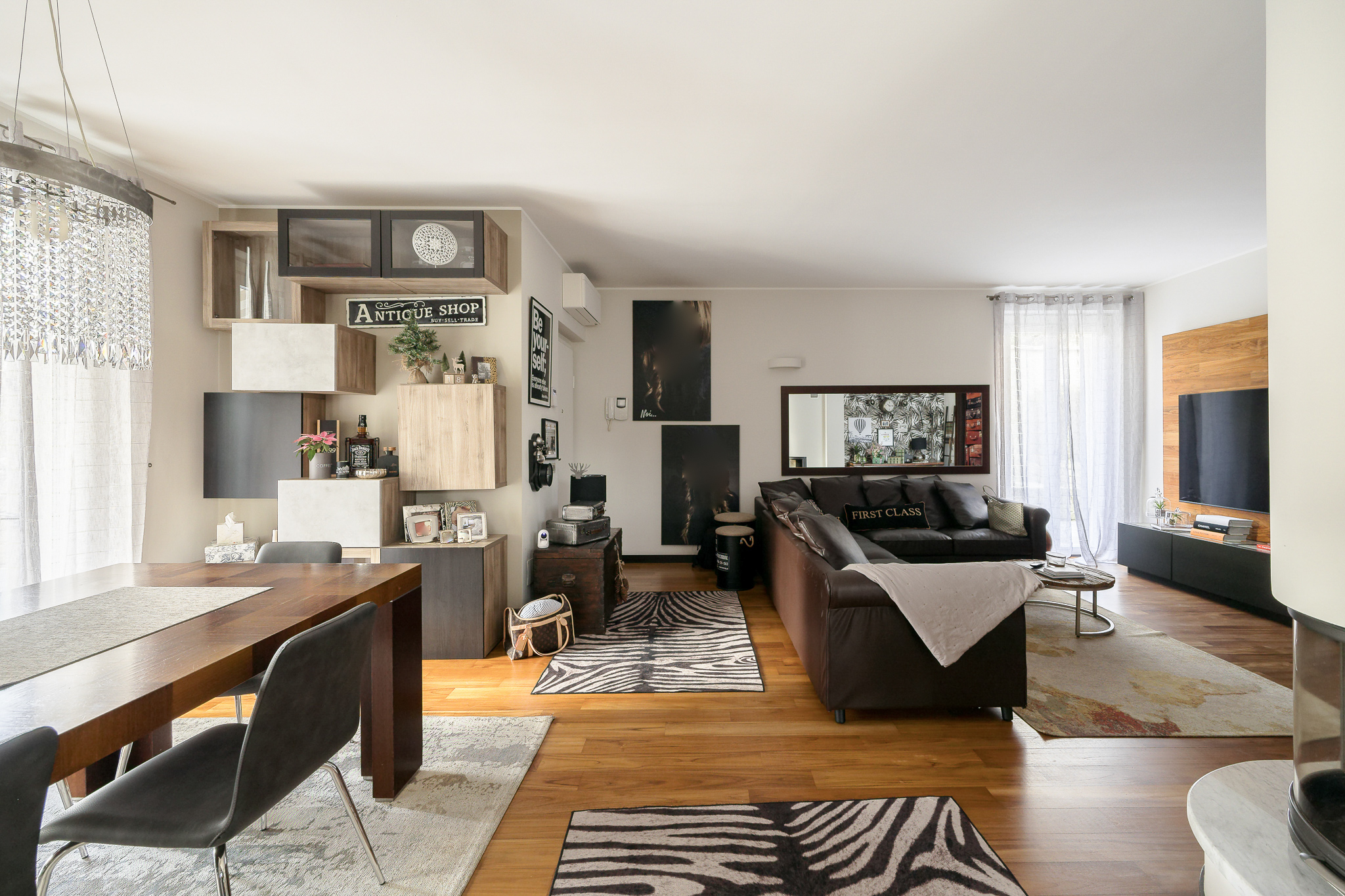
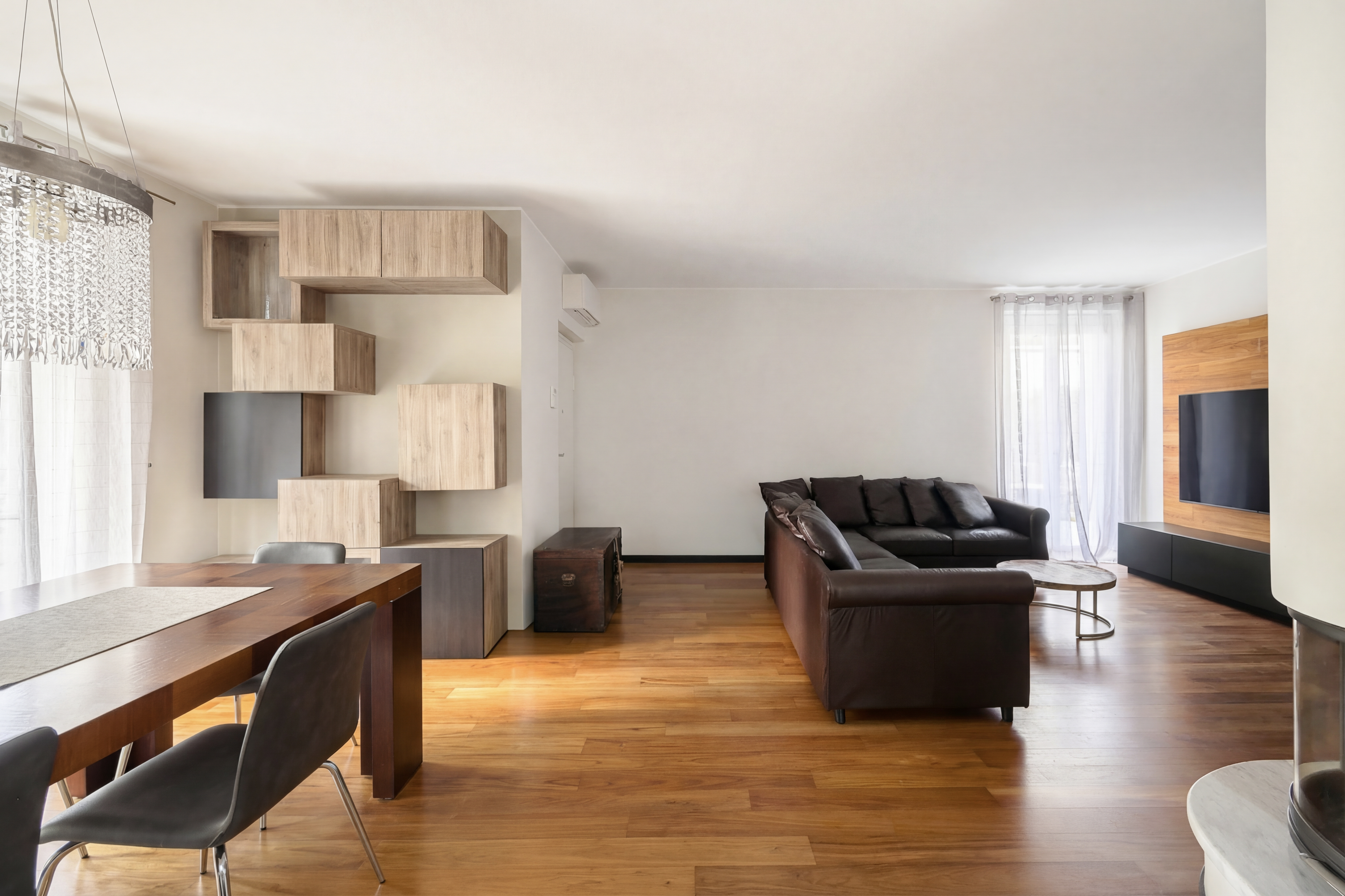
The manual retouch tasks every property photographer hates — cables, toiletries, personal items, signage — removed in one pass. Or empty a room down to structure. Batch 30+ photos while you grab coffee.
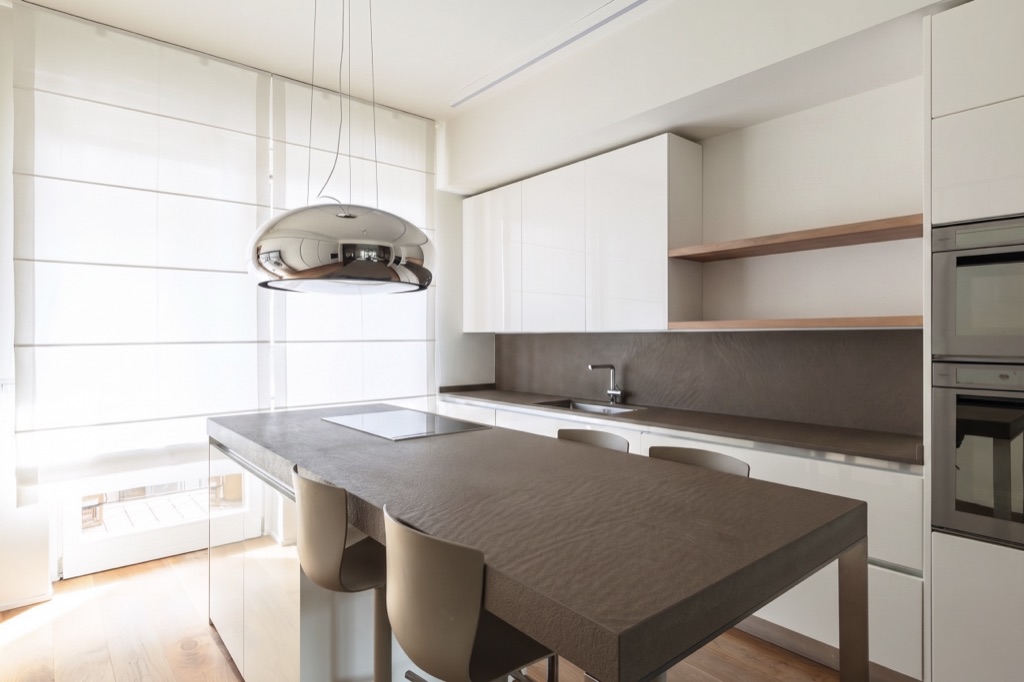
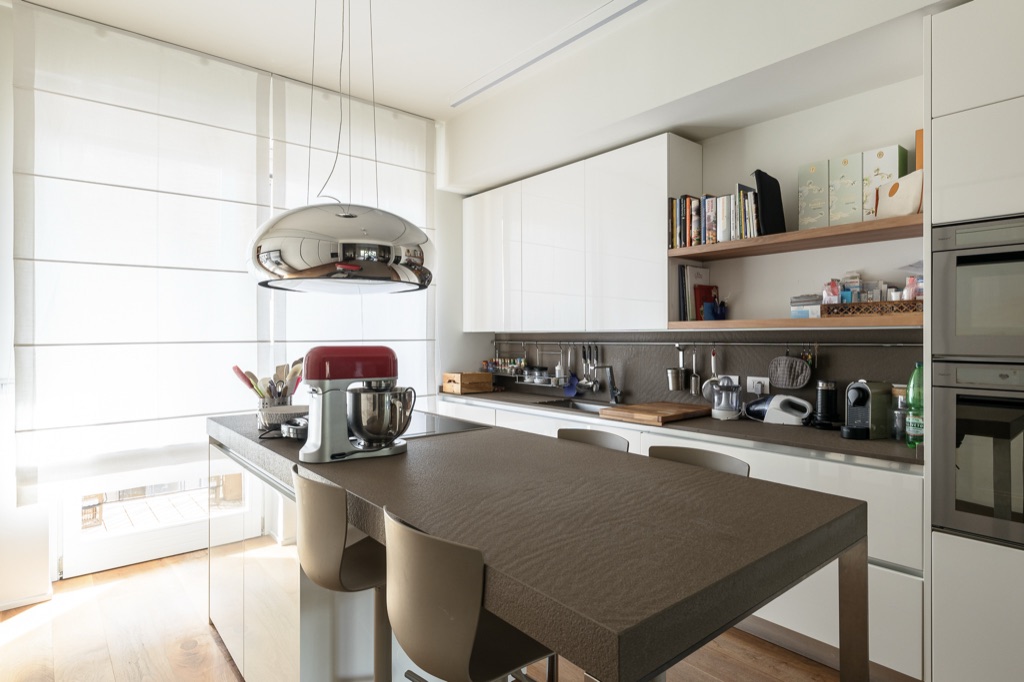
Interior after declutter Interior before declutter
Batch-safe · 30+ shots
03 Available
Consistency engine
consistent lighting · consistent retouch

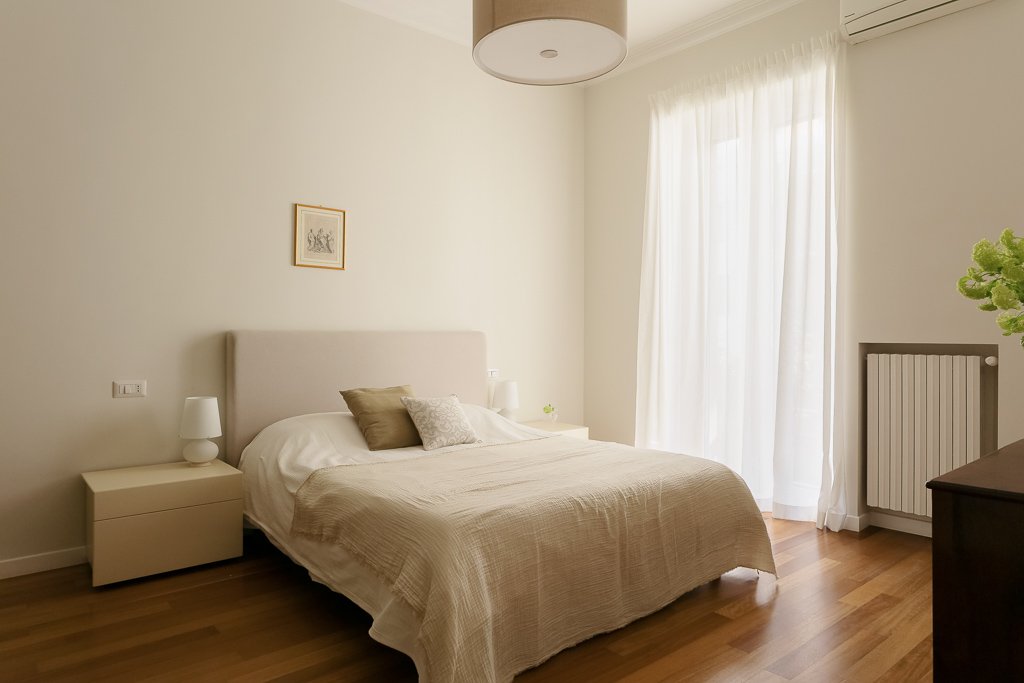
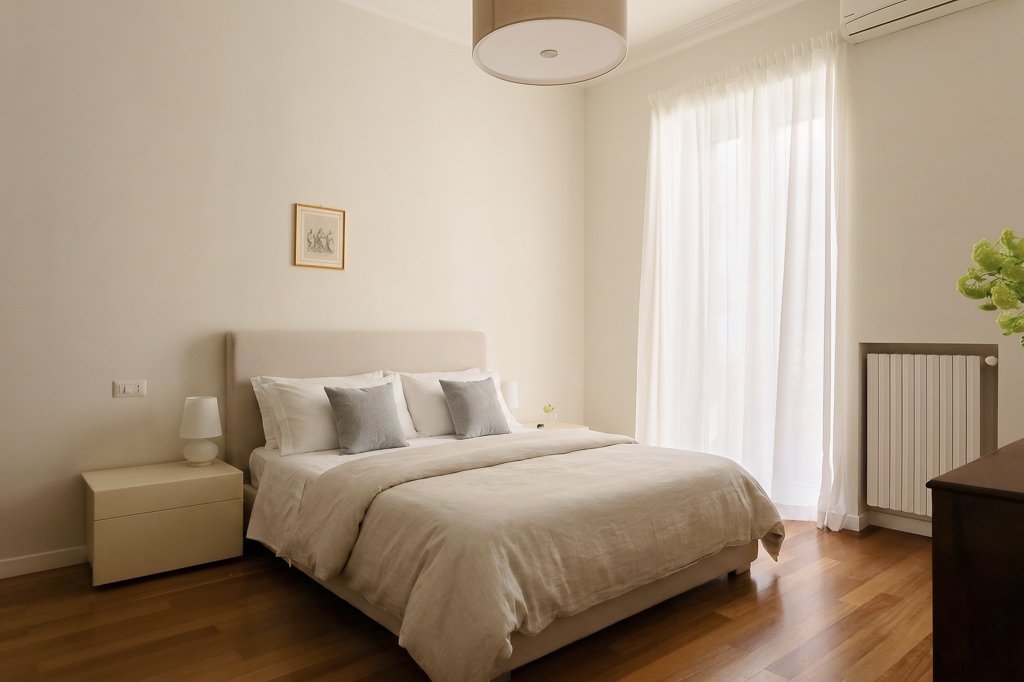
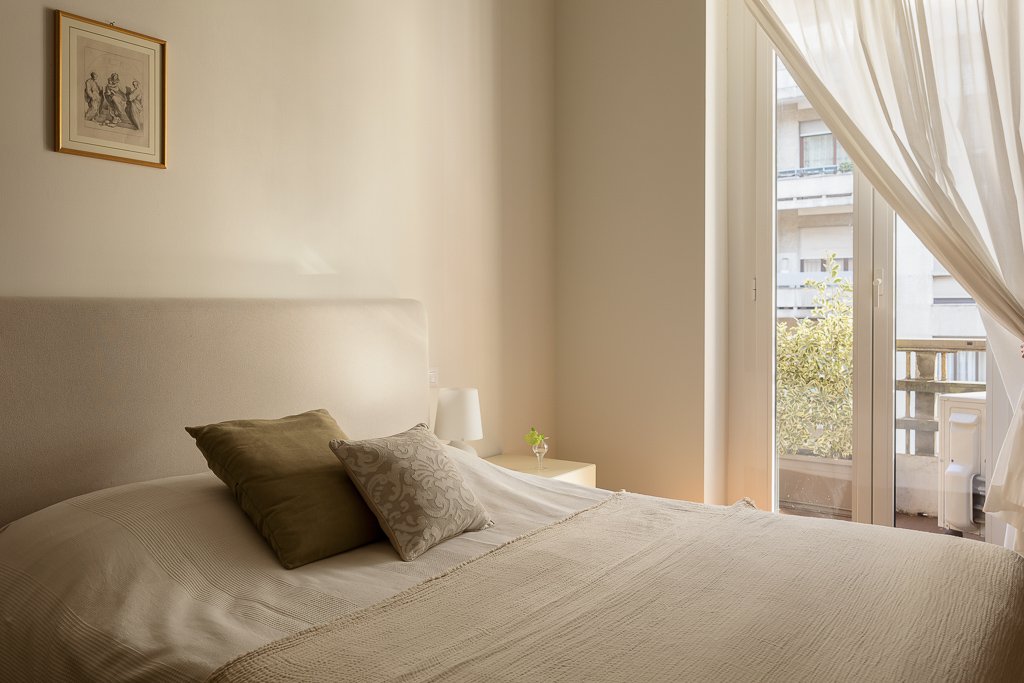
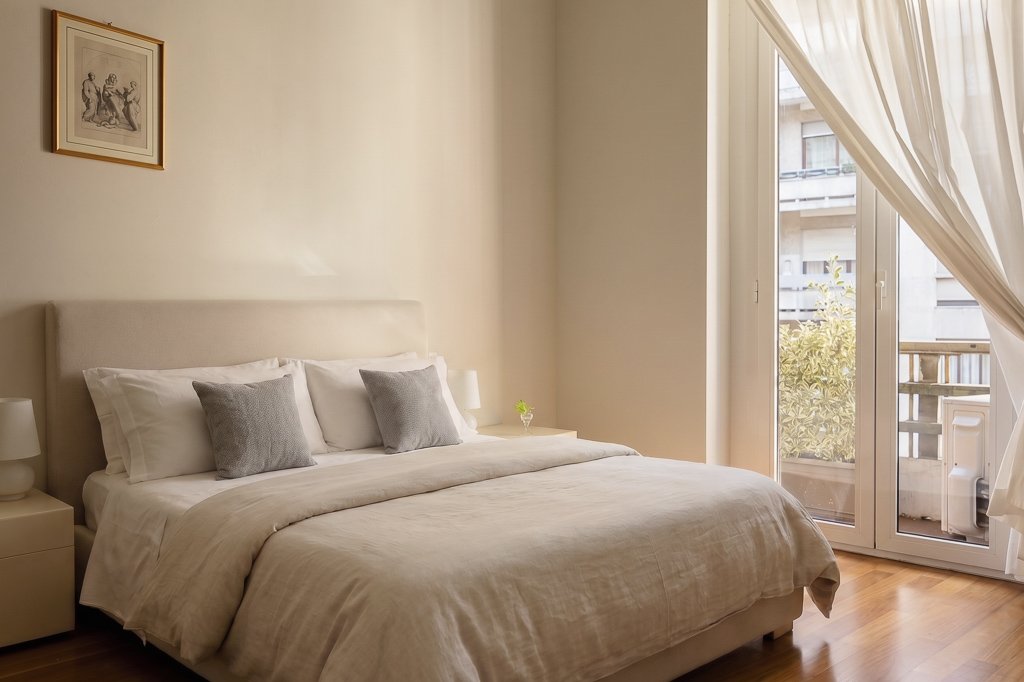
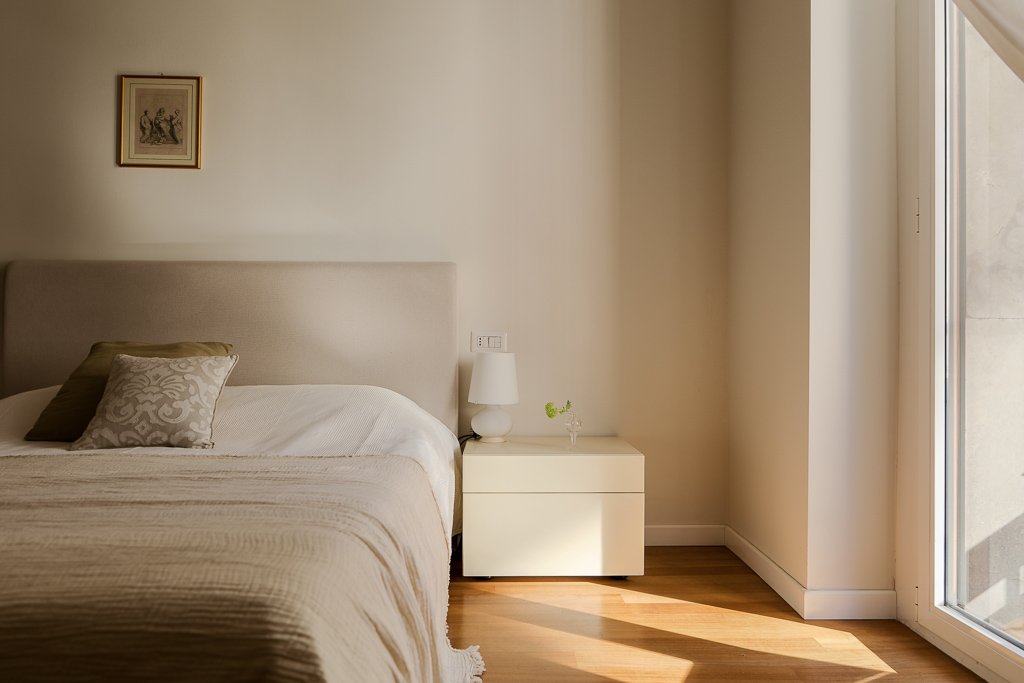
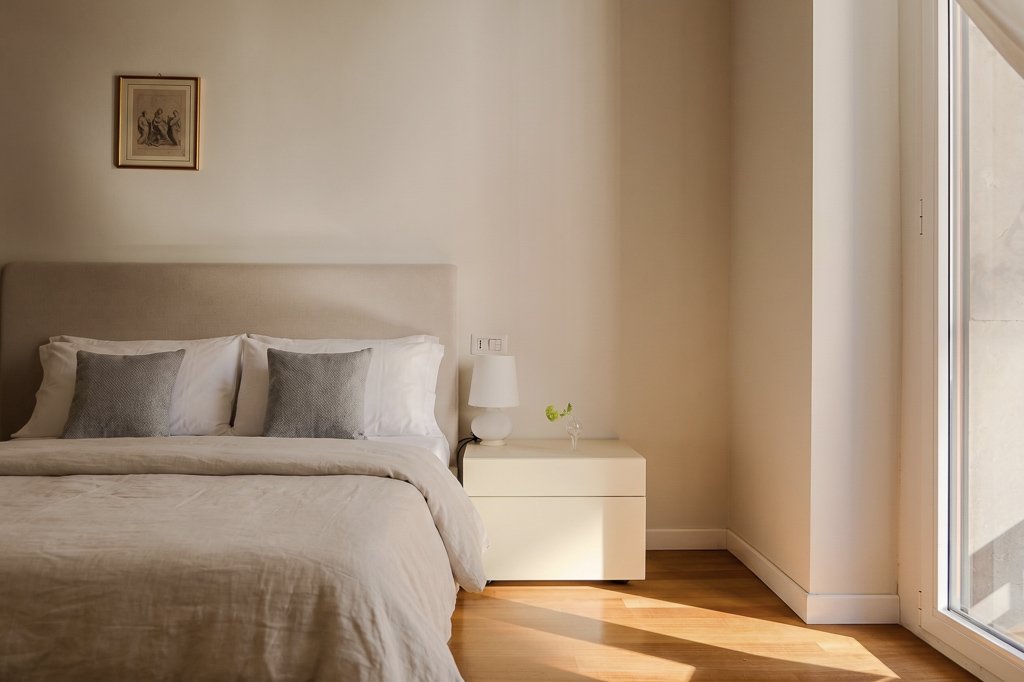
Tick one box and the whole batch stays coherent — mood, color temperature, sky palette locked across every room. Consistent Retouch covers bed reset and season change, keeping retouch details aligned shot after shot.

Room 1 before — flat midday Room 1 after — consistent mood Exterior 1 before — flat midday Exterior 1 after — same twilight mood across the property Bedroom 1 before bed reset Bedroom 1 after — same bedding style across the batch
Room 2 before — flat midday Room 2 after — consistent mood Exterior 2 before — flat midday Exterior 2 after — same twilight mood across the property Bedroom 2 before bed reset Bedroom 2 after — same bedding style across the batch
Room 3 before — flat midday Room 3 after — consistent mood Exterior 3 before — flat midday Exterior 3 after — same twilight mood across the property Bedroom 3 before bed reset Bedroom 3 after — same bedding style across the batch
Room 4 before — flat midday Room 4 after — consistent mood Exterior 4 before — flat midday Exterior 4 after — same twilight mood across the property Bedroom 4 before bed reset Bedroom 4 after — same bedding style across the batch
One checkbox · whole batch
04 New
Virtual staging & renovation
empty room or full renovation · real estate · editorial

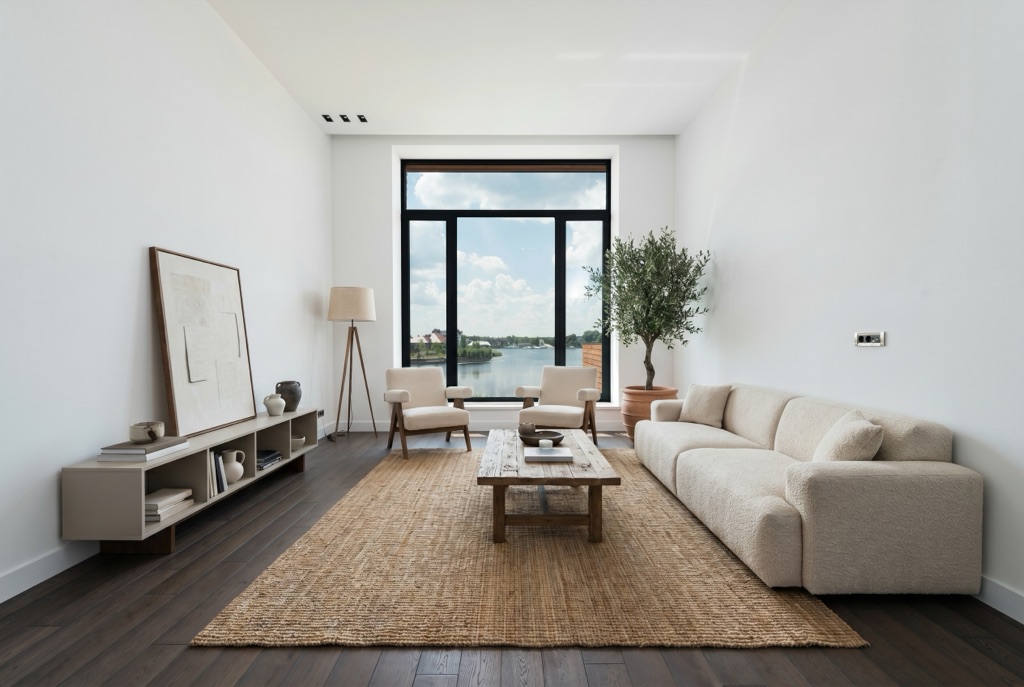
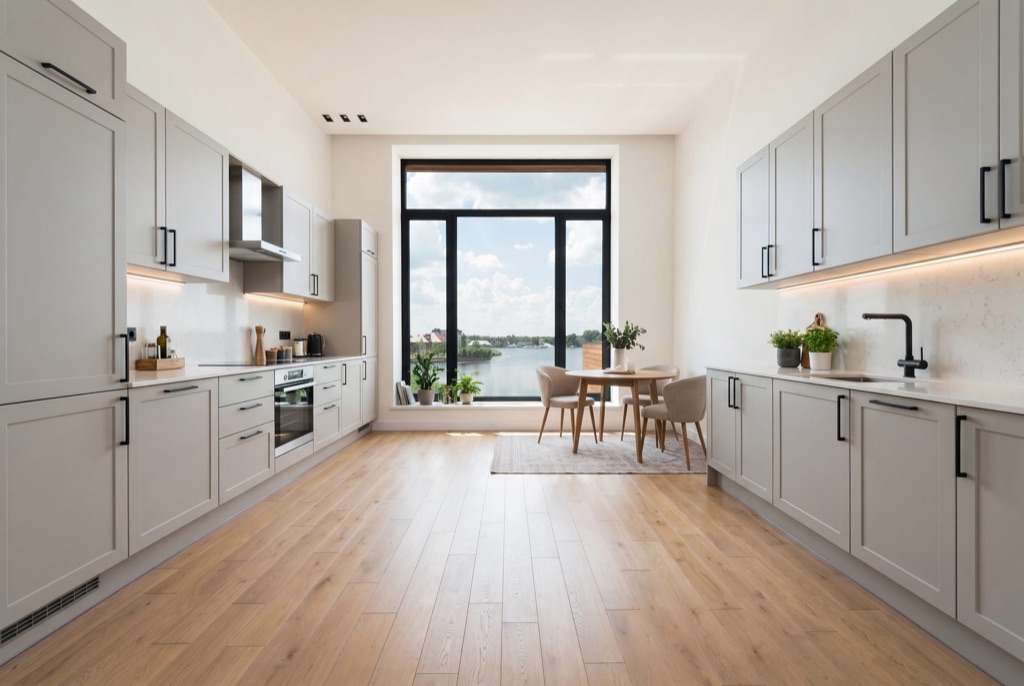
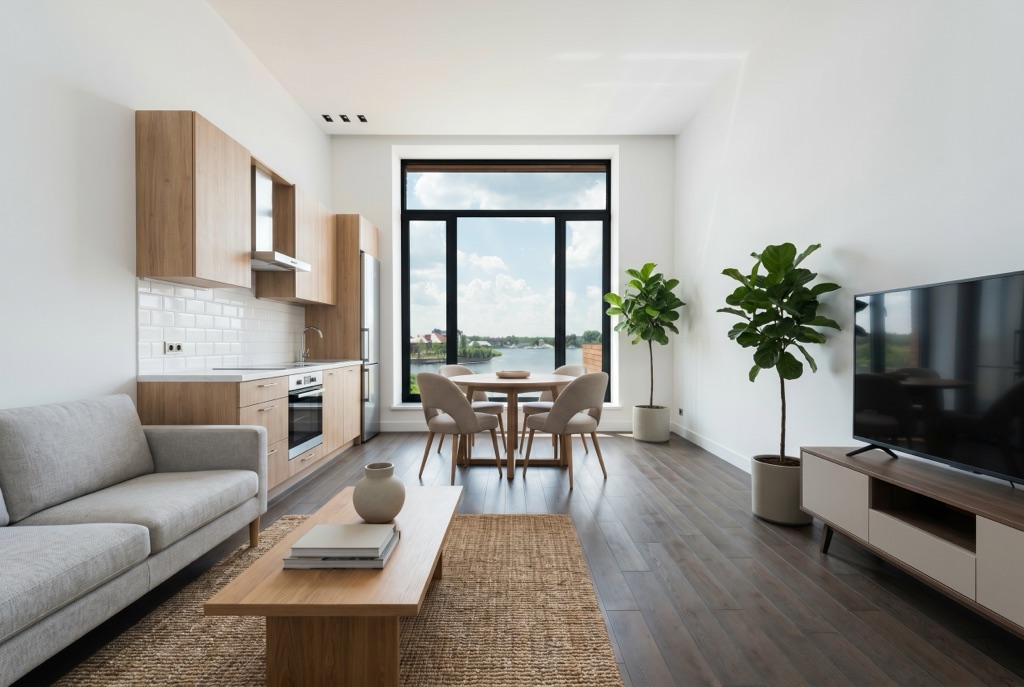
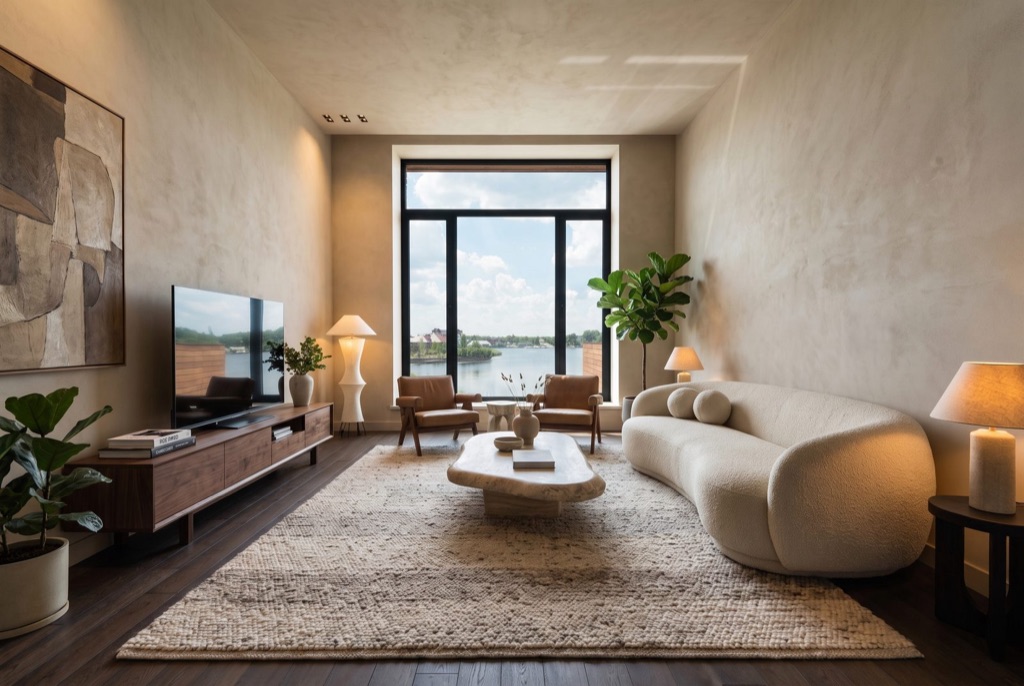
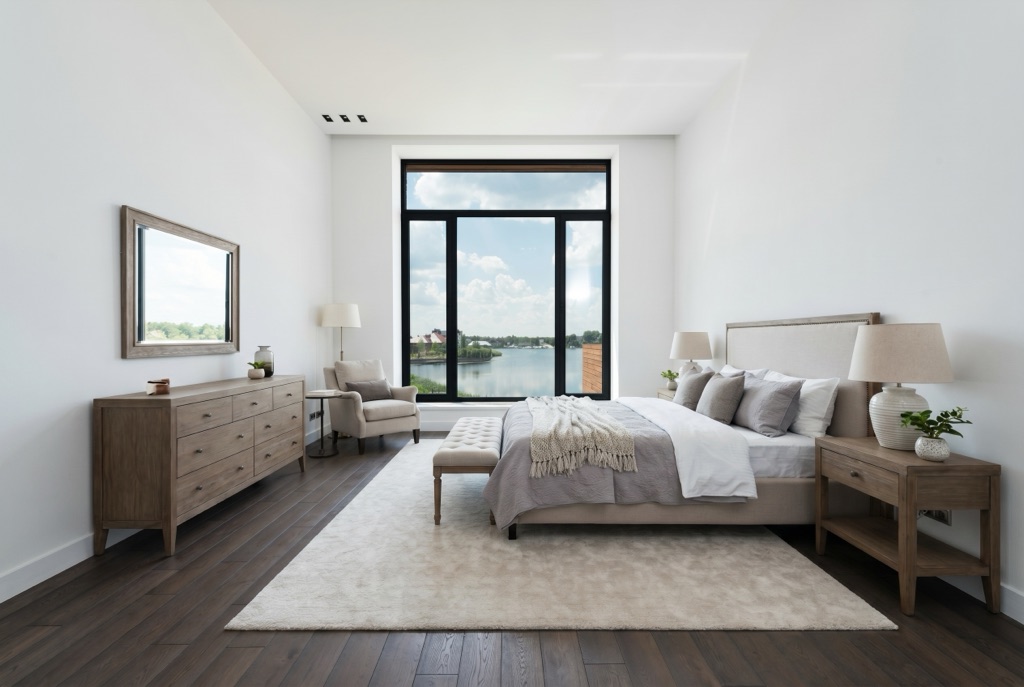
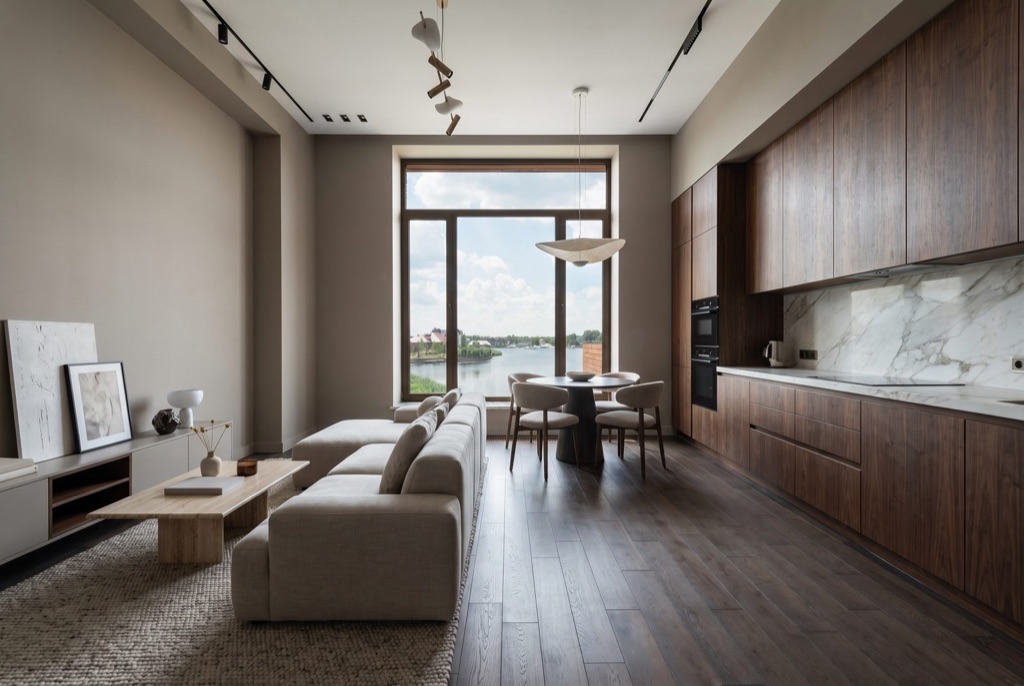
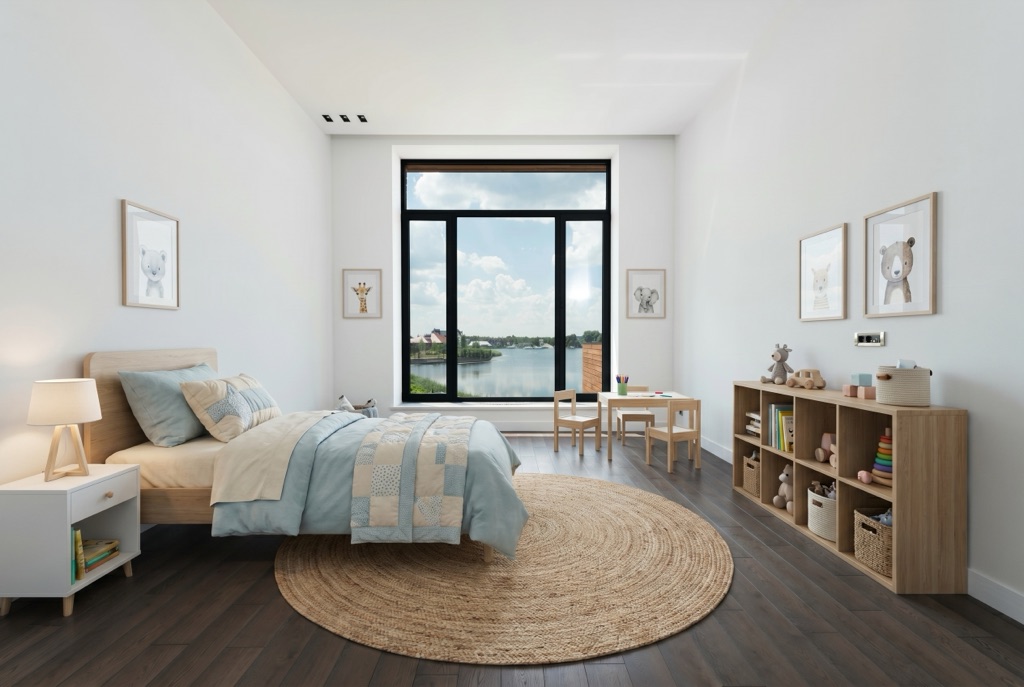
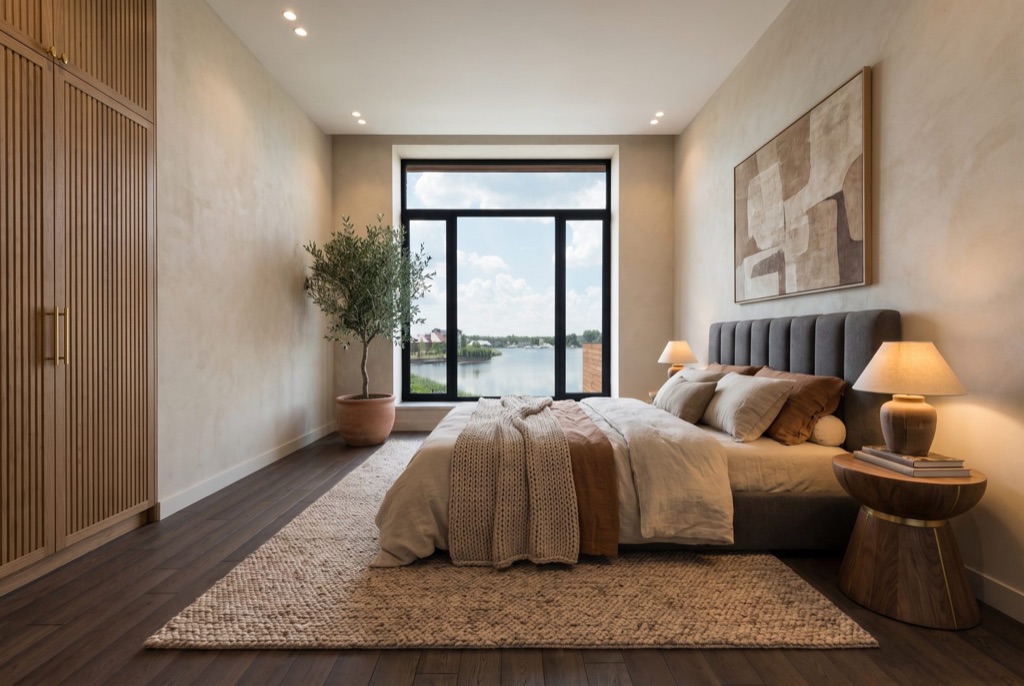
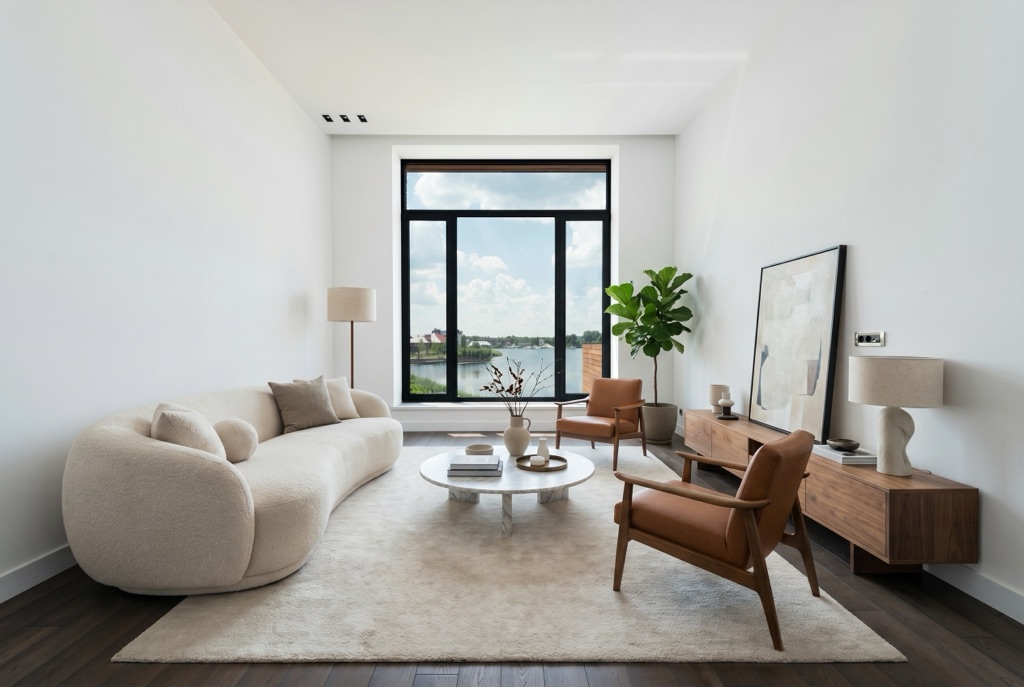
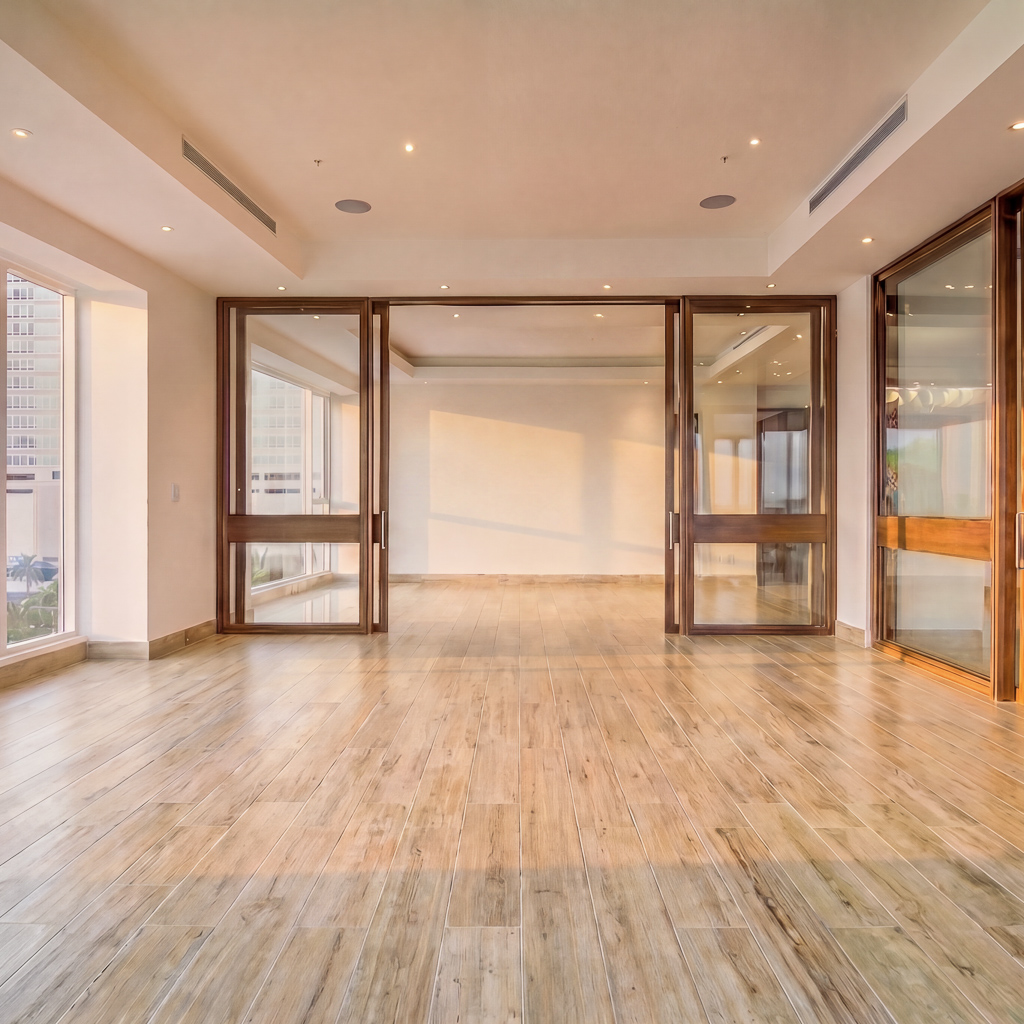
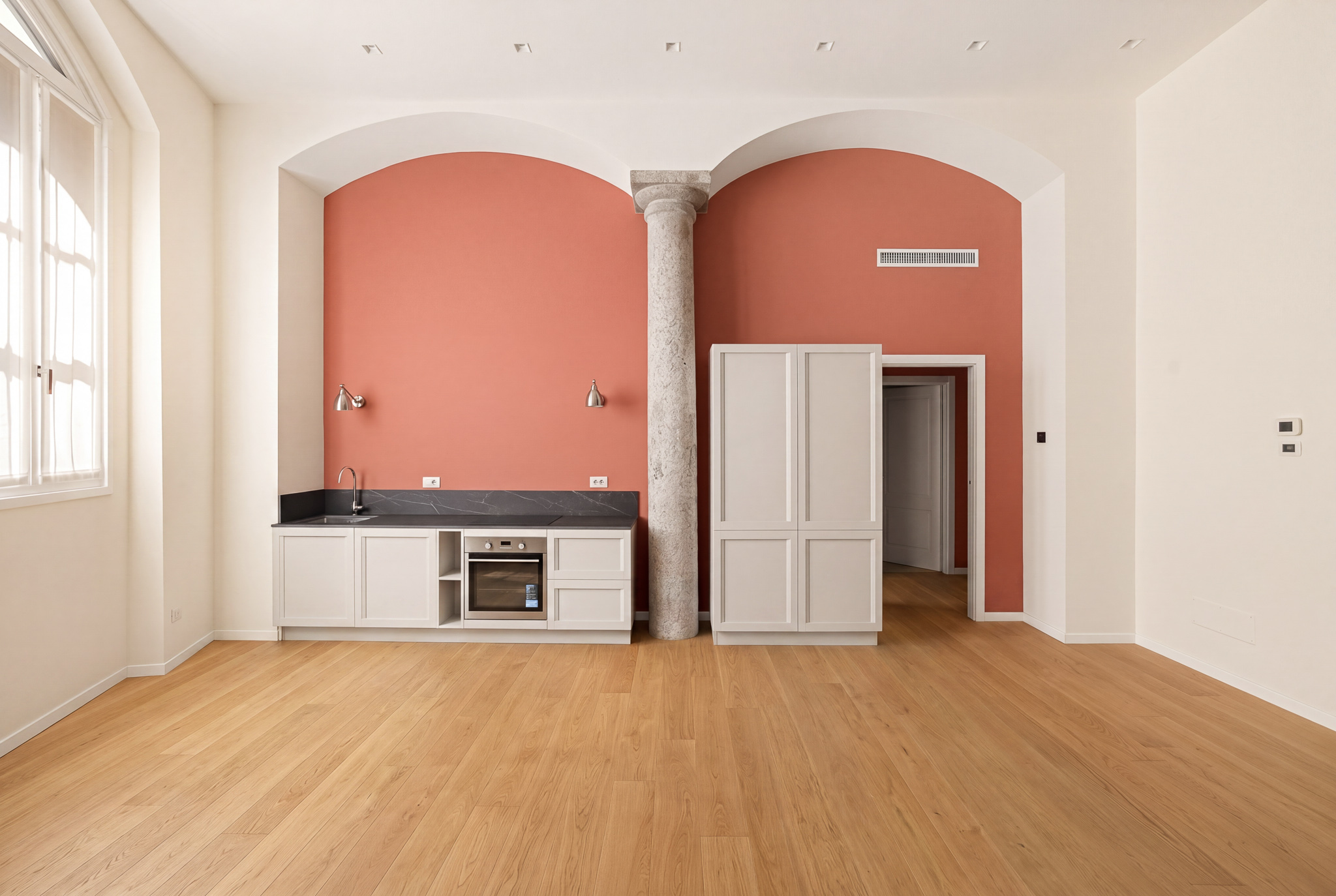
Furnish an empty room from scratch, or renovate a dated one — new finishes, fixtures and furniture. The AI adapts to each space, while walls, windows and your framing stay exactly as shot.
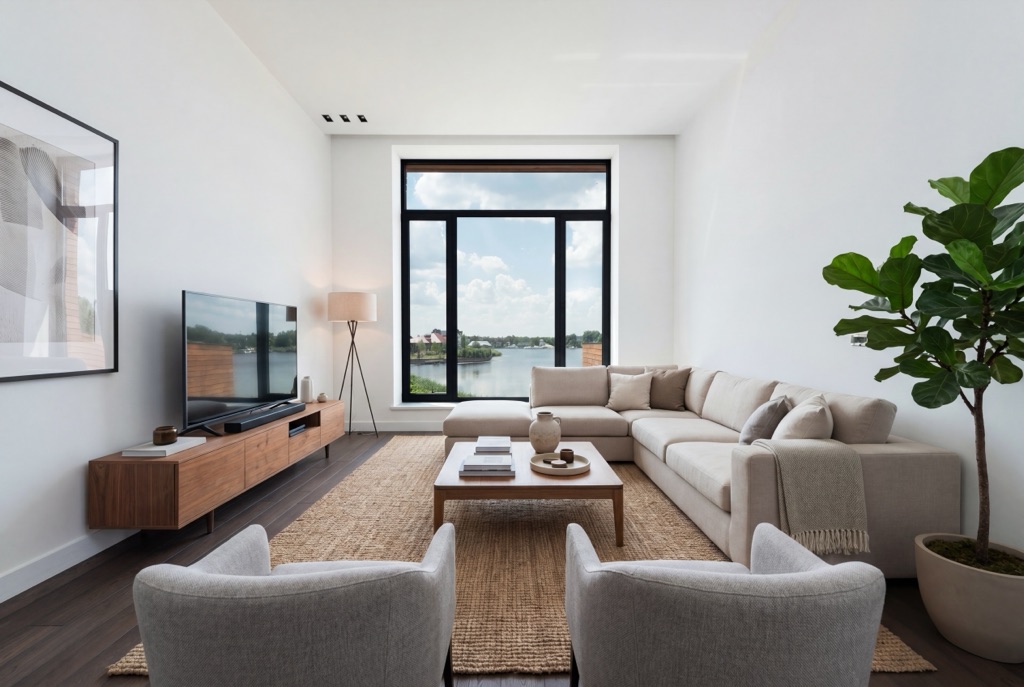
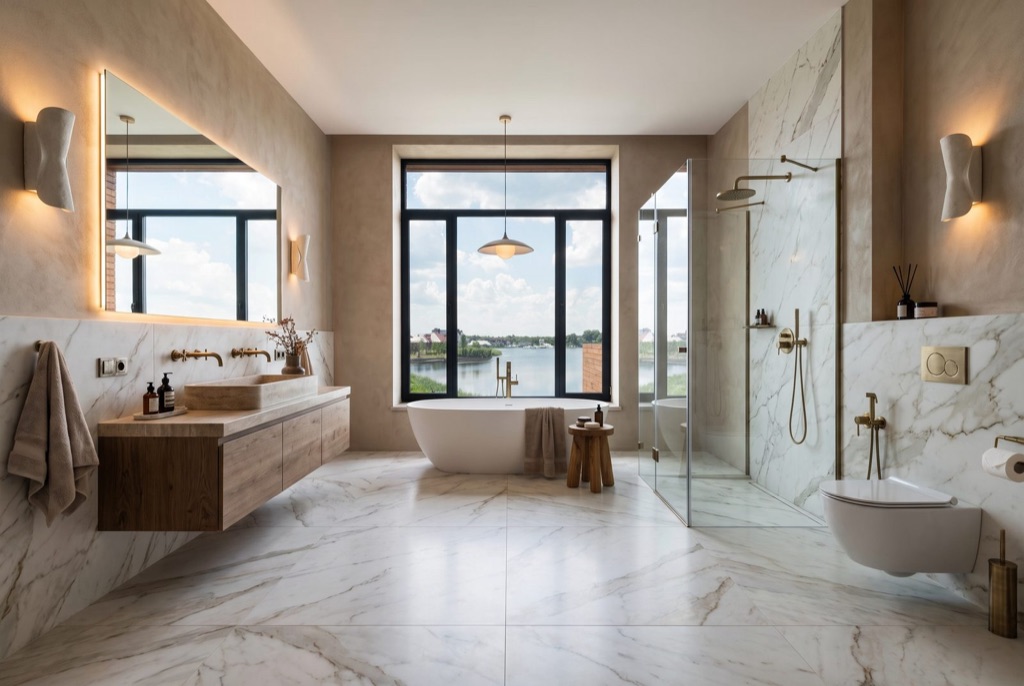
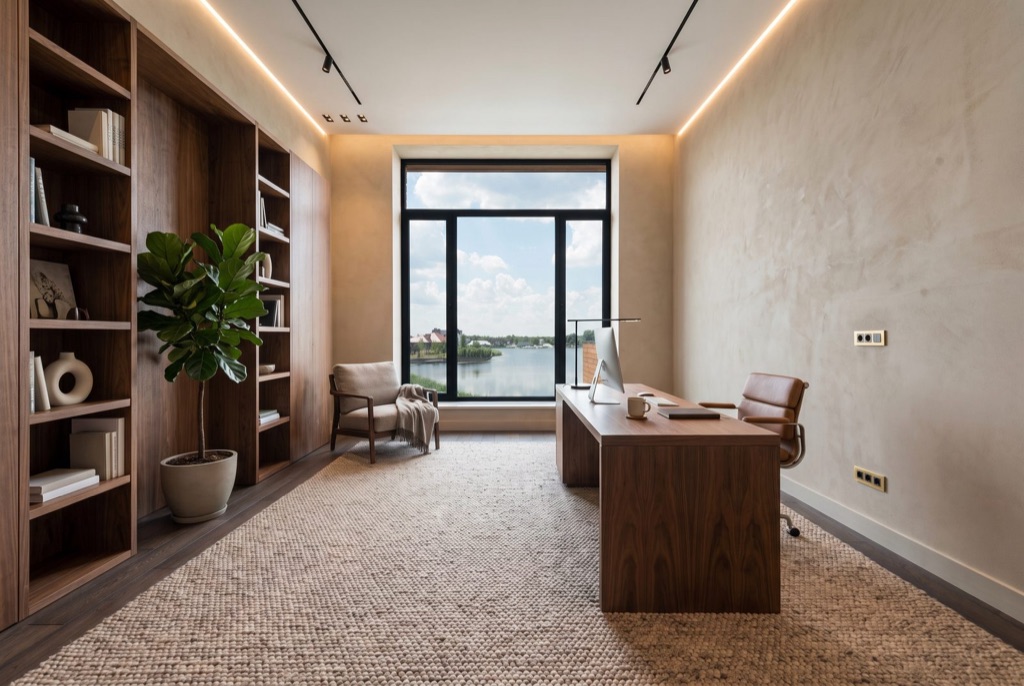
Virtual staging — Real Estate living room Virtual renovation — the same room as an Editorial bathroom Virtual staging — Editorial living room Virtual renovation — the same room as a Real Estate kitchen Virtual staging — living and kitchen Virtual renovation — the same room as an Editorial living room Virtual staging — bedroom Virtual renovation — the same room as an Editorial living and kitchen Virtual staging — kids room Virtual renovation — the same room as an Editorial bedroom Virtual staging — Editorial living room variant Virtual renovation — the same room as an Editorial home office
Empty → furnished or renovated
See all presets in the gallery

Every preset applied to the same room, side by side
Inside Lightroom Classic
Every tool. One window.

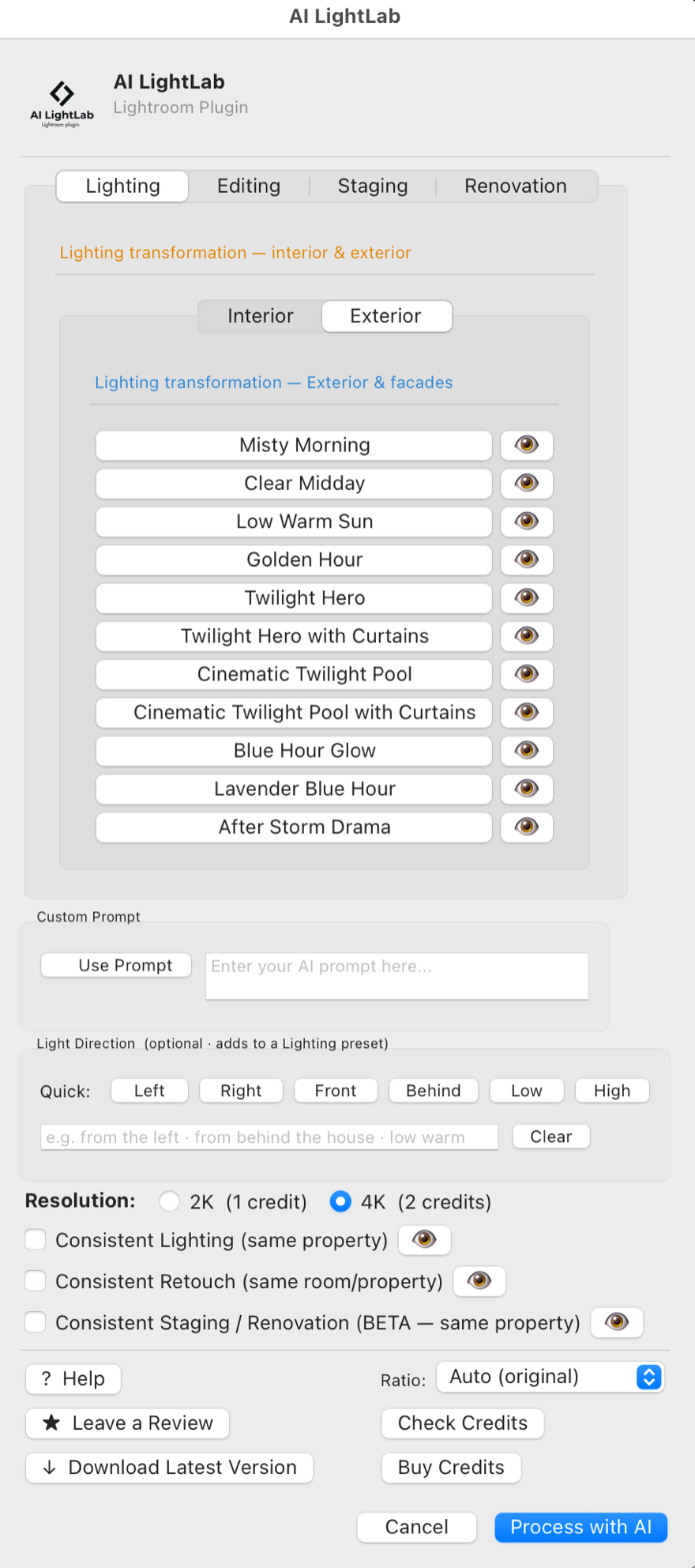
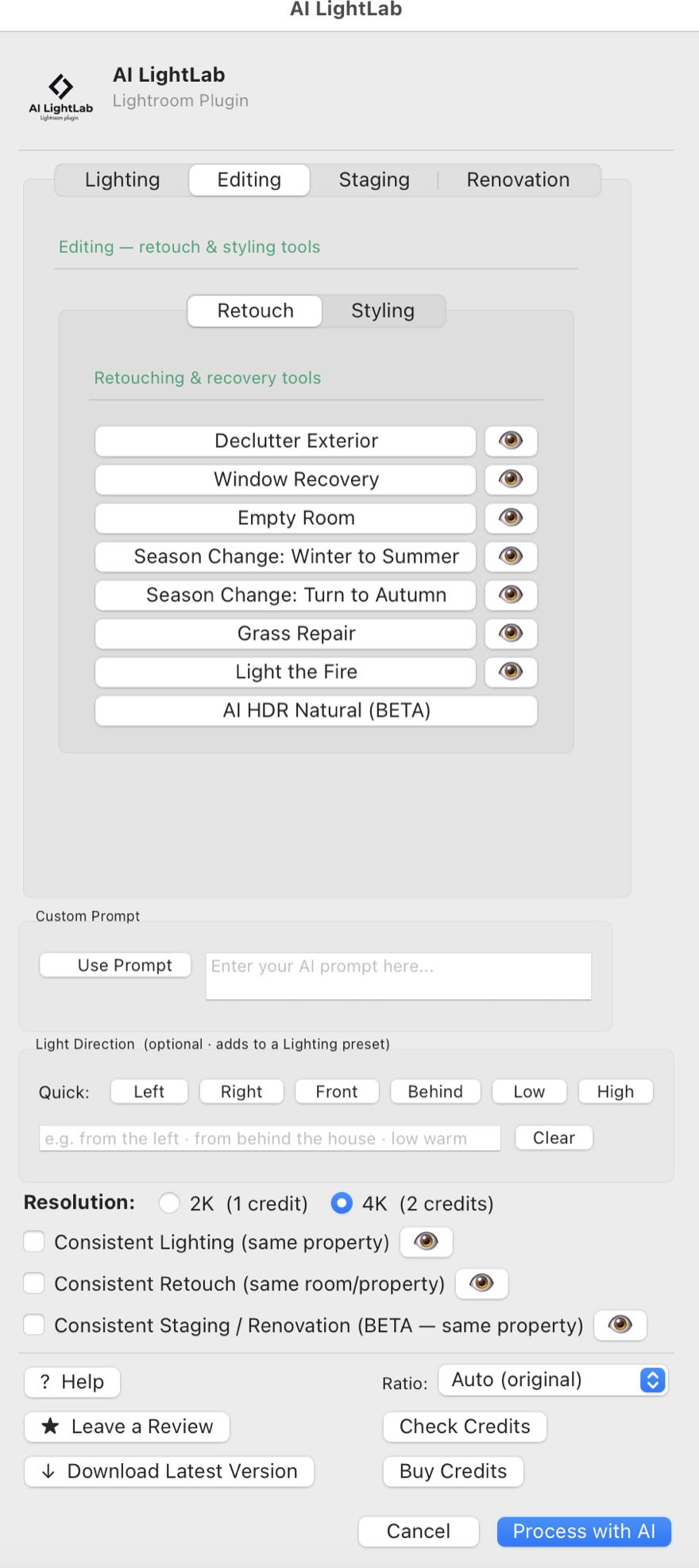
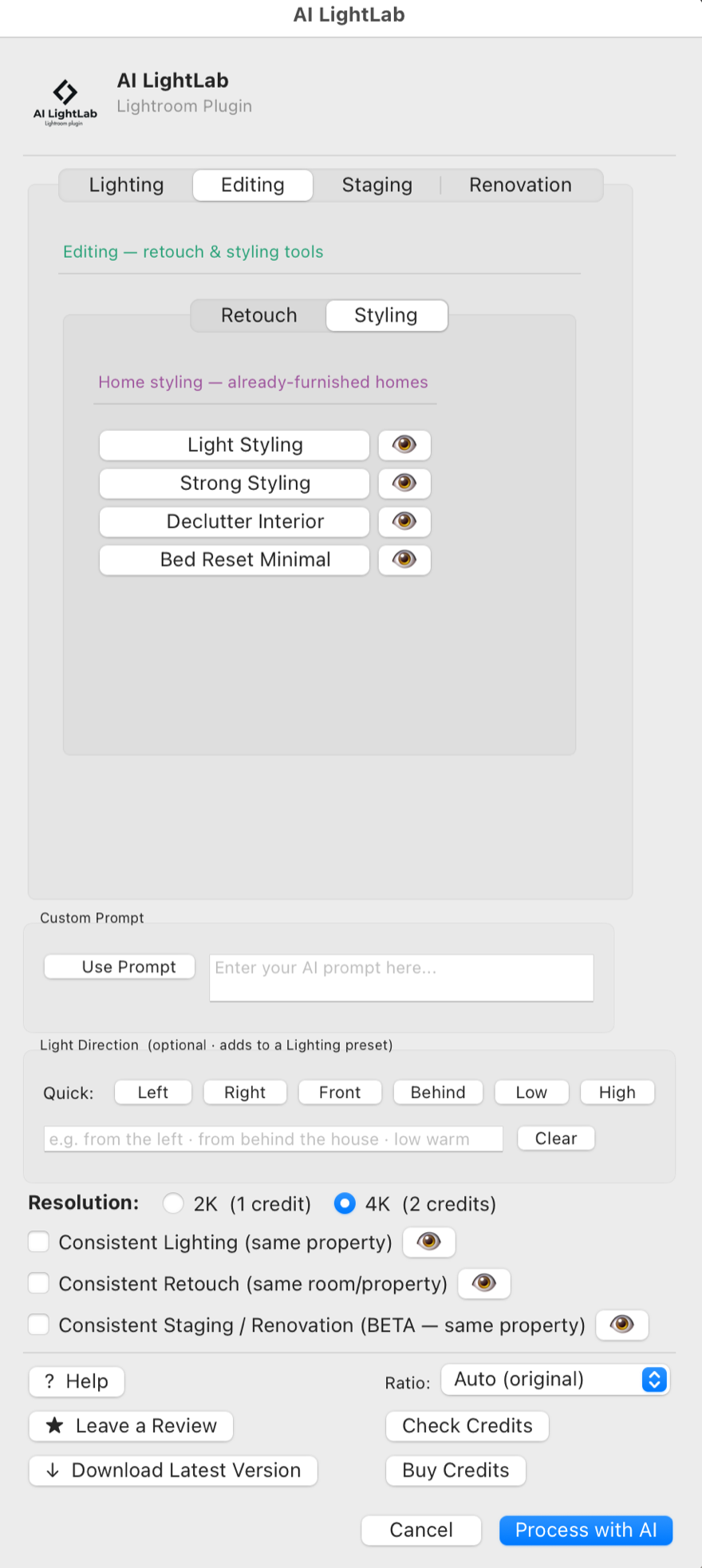
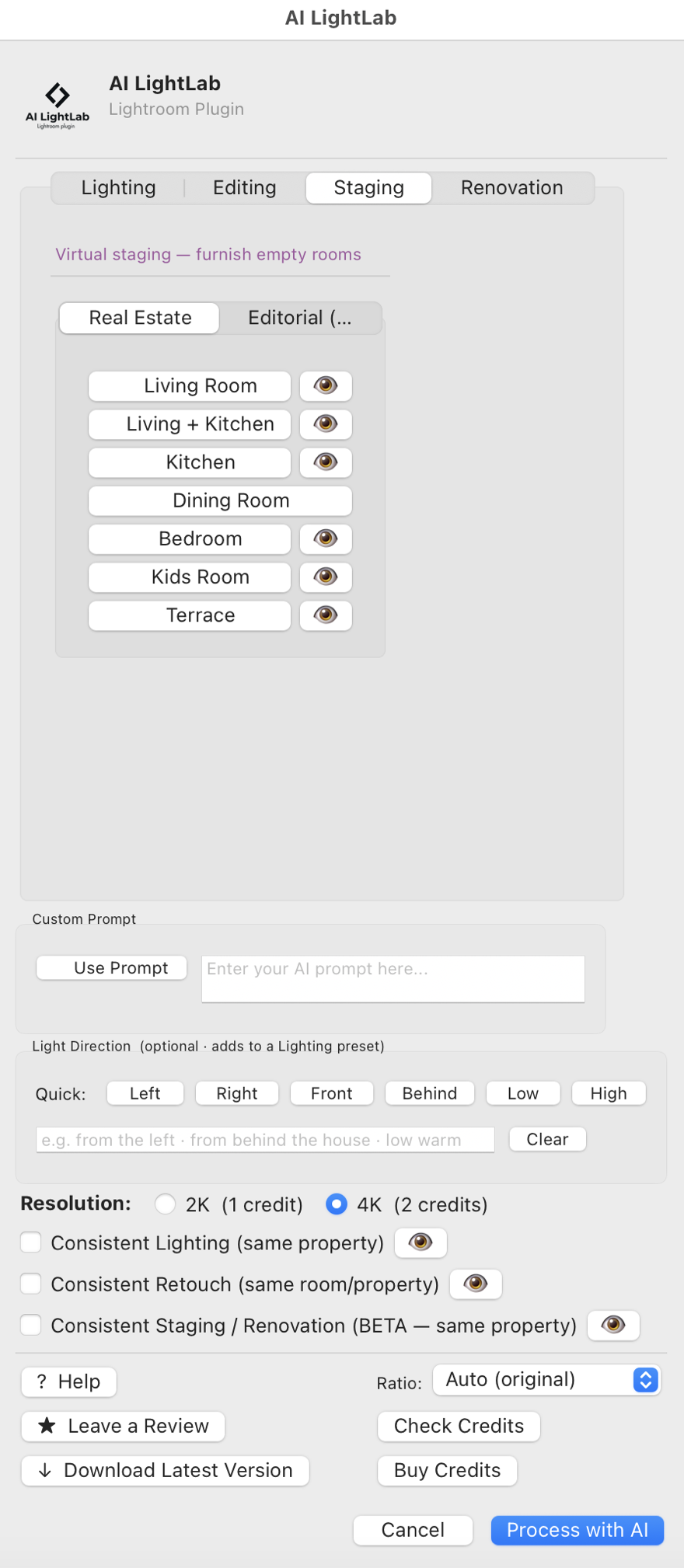
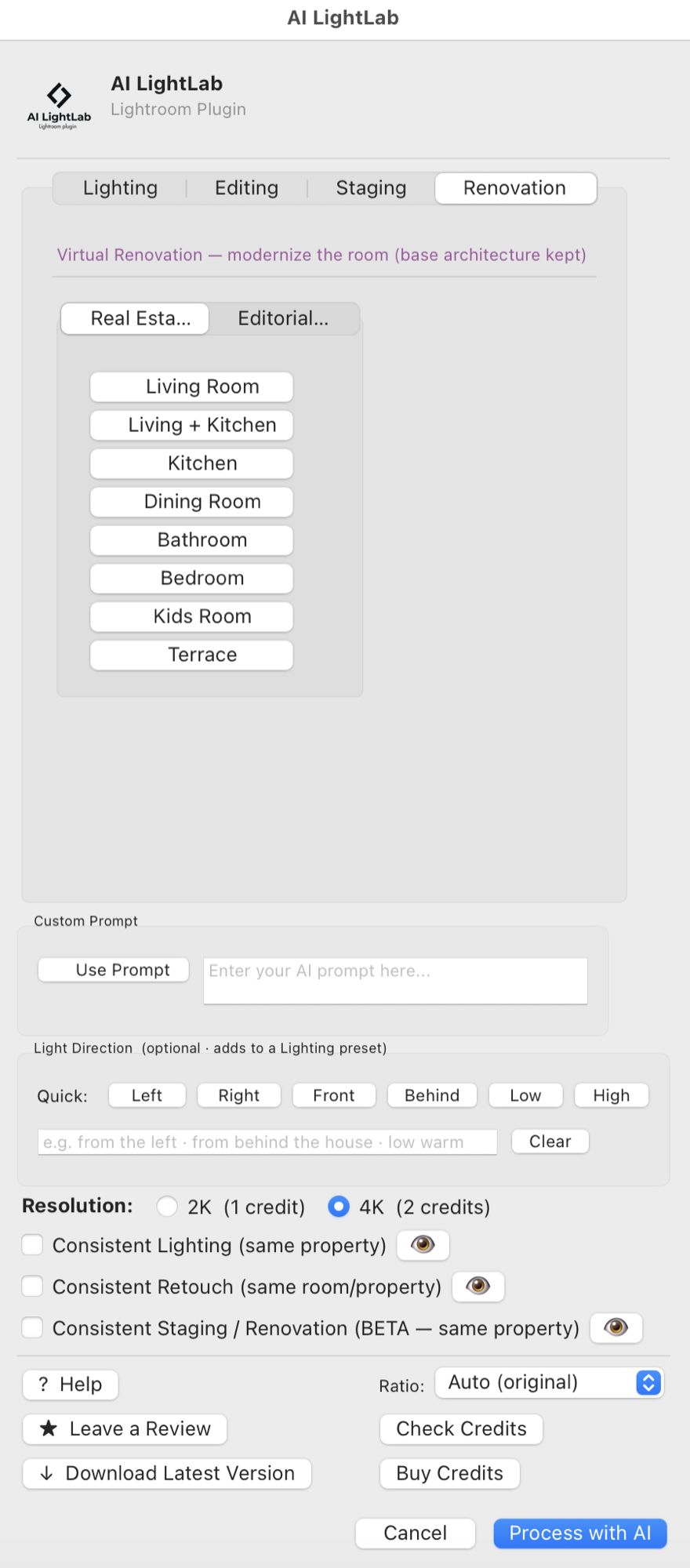
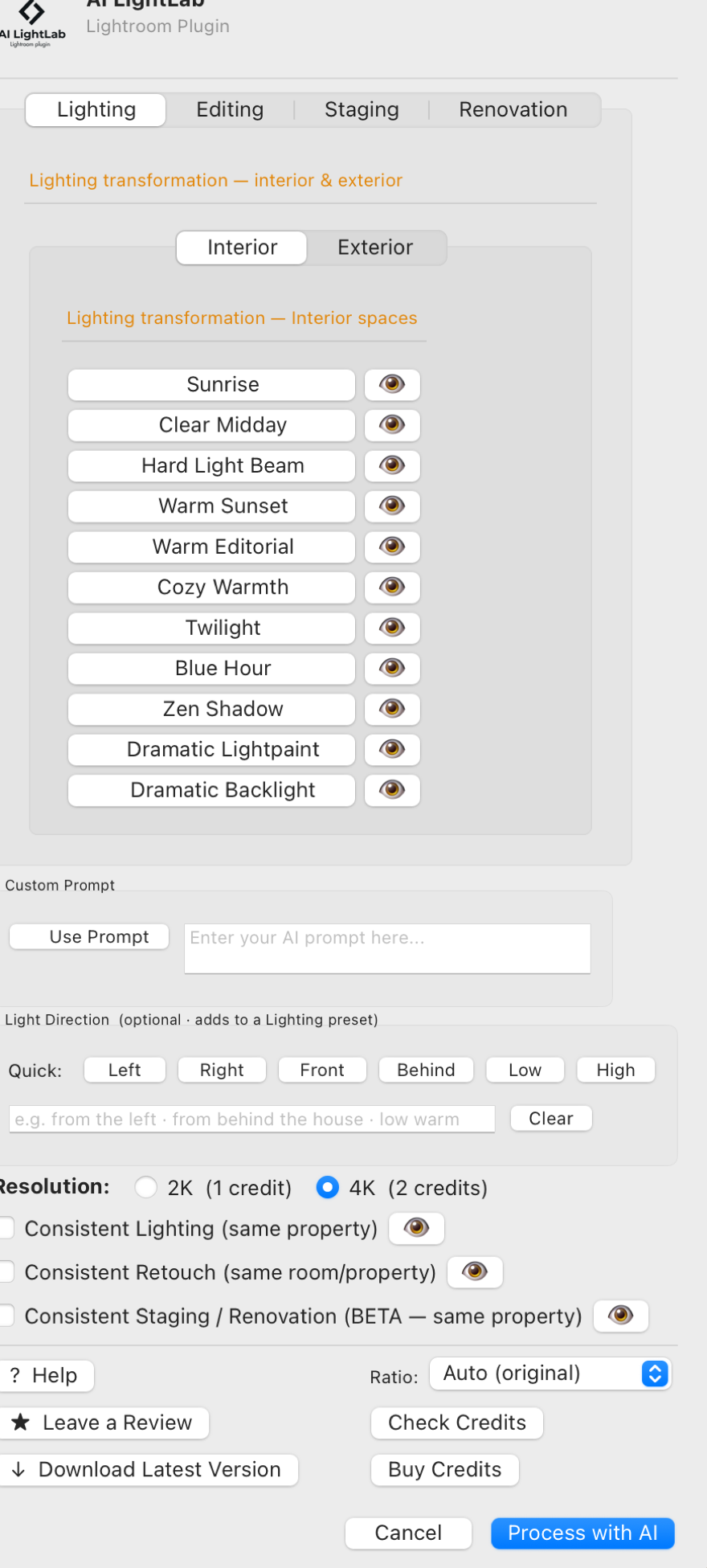
Lighting, editing, styling, virtual staging and full renovation — all inside a single Lightroom panel. Hover a card to zoom in.
Lighting Interior tab
Lighting Exterior tab
Editing tab
Styling tab
Virtual Staging tab
Virtual Renovation tab

Interface shown as of version 2.8 — new tools and presets keep arriving in free updates.

Alessandro Colombo · Milan
Built by a real photographer Not by a generic AI startup.
"

After 3,000+ properties shot, real deadlines, and late-night editing — I built the tool of my dreams: consistent lighting control and retouch automations inside Lightroom.

From the founder
Alessandro Colombo
Real estate & architecture photographer · Milan
AC Photo Studio
3,000+ Properties shot
12 yrs On location
–80% Editing time
Amazed Every client
The workflow

Three clicks,
no detours.

Everything happens inside Lightroom Classic. Your originals never leave. The enhanced file lands in your catalog, ready for your usual develop adjustments.

Step 01

Select photos

Pick one or a batch from your Lightroom catalog. Works with RAW, TIFF, JPEG, DNG — anything Lightroom can read.

Step 02

Pick presets

Light modification, retouch automations, HDR merge — or write a custom prompt. Select multiple presets to generate different versions of the same photo.

Step 03

Keep editing

AI runs in the background while you work on other shots. Enhanced files appear next to the originals — fully editable.

VS every other similar tool

Side by side.

Why working photographers and editors pick AI LightLab over web-based AI editors.

The competition
Web AI tools
  • ×Lives in a browser
  • ×Monthly subscription
  • ×Export & re-import loop
  • ×Generic photo editor
  • ×Different result every shot
  • ×Built by AI startups
The plugin
AI LightLab
  • ✓Native to Lightroom
  • ✓$89 once. Lifetime updates.
  • ✓Right-click → done
  • ✓Built for real estate
  • ✓Unified mood, every shot
  • ✓Built by a working photographer
From the field

What photographers actually say.

Unedited, in their own words — including the parts that are still on the to-do list.

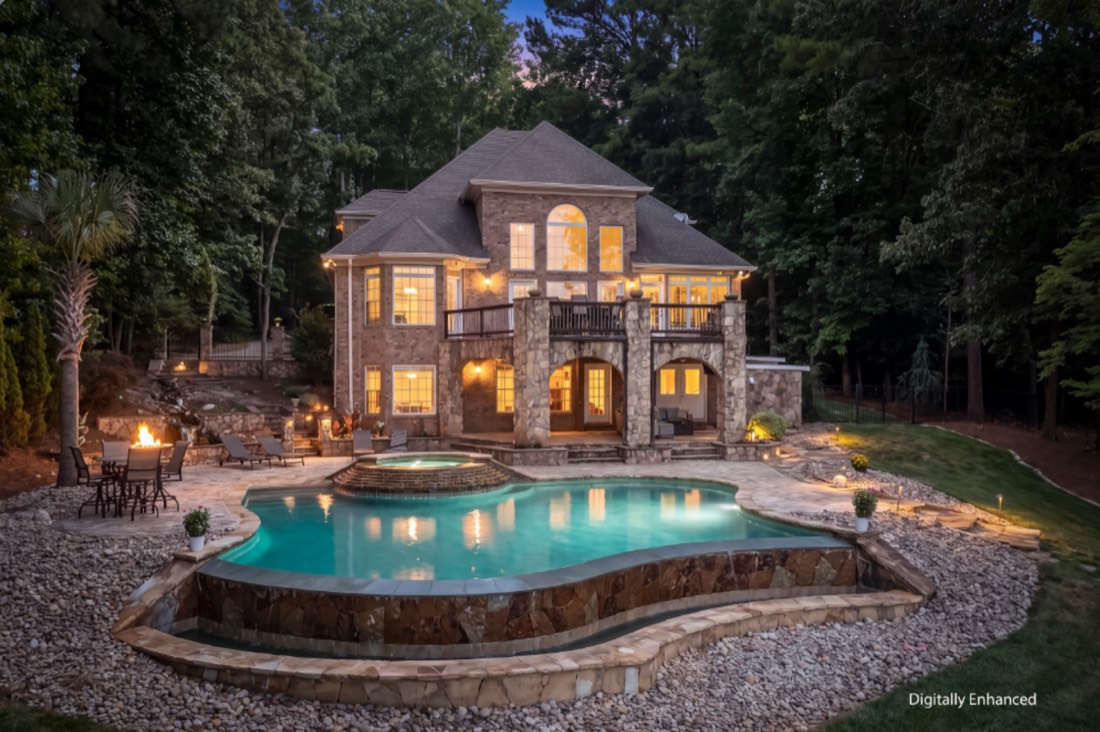
Brick house at twilight, windows lit, pool in the foreground
★★★★★
I use the AI Light Lab Lightroom Plugin every day for editing real estate photography, and it has become an important part of my workflow. It’s fast, produces excellent-quality results, and most importantly, the final images look natural. What really sets AI Light Lab apart is that it was designed specifically with real estate photographers in mind. It addresses many of the common editing challenges we deal with every day, helping streamline the workflow without sacrificing image quality or creating an overly processed look. For real estate photographers looking to improve their editing workflow, save time, and maintain consistent, natural-looking results, I would definitely recommend giving AI Light Lab a try.
★★★★★
I’ve been working as a real estate and architecture photographer for many years. I came across Ai Lab on Instagram and thought, “Okay, I’ll give this a try.” I was totally blown away by how well this AI works: it’s brilliant. The transitions and colors look absolutely real, not even a bit cheesy, and you can also edit the high-resolution images really well. I’m already really looking forward to testing more features. I highly recommend it to anyone involved in architectural and real estate photography.
Jessica Alice Hath alice-foto.de
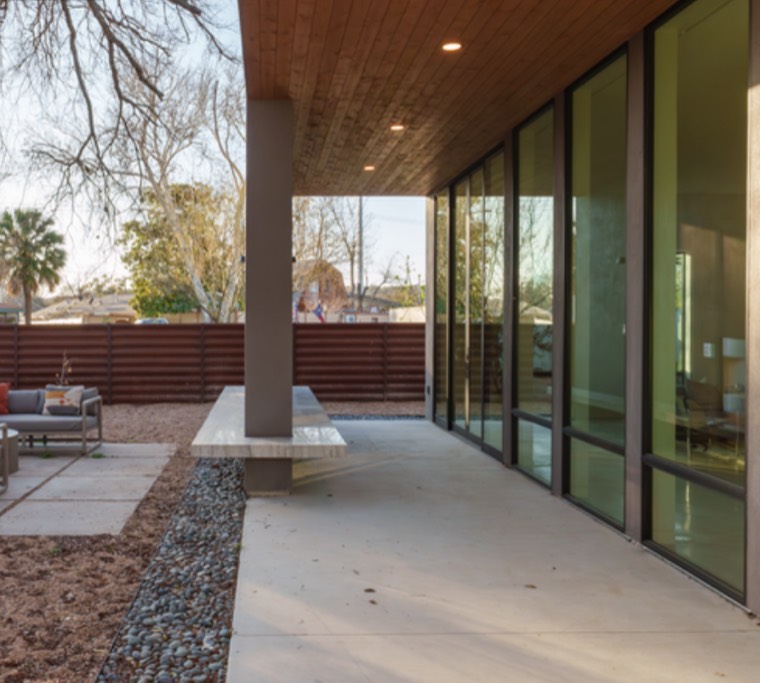
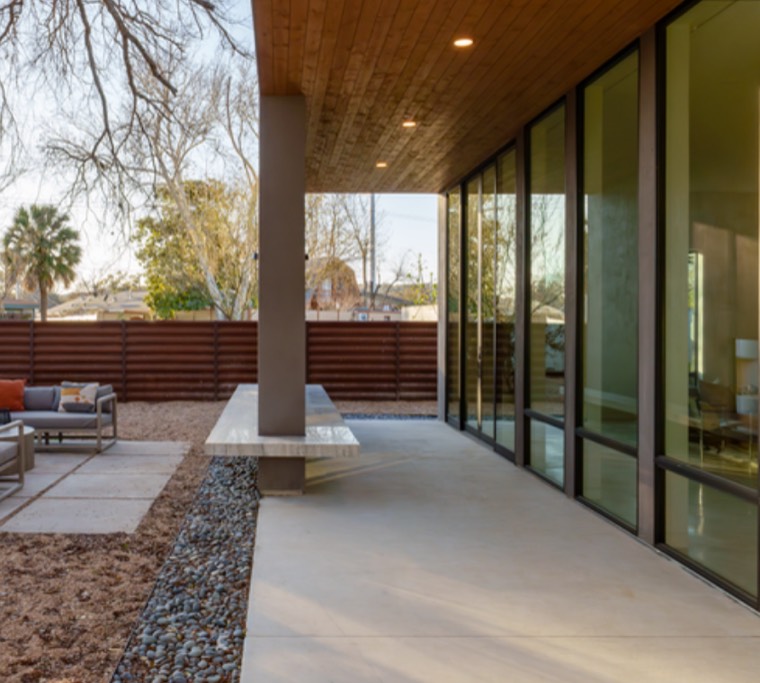
Covered patio with fallen leaves scattered across the concrete The same patio with the leaves removed Leaves cleared from the patio
★★★★★
This is an awesome tool to have right at my fingertips in Lightroom. Many of these functions are things I have wanted to work on with various AI tools myself but just haven’t been willing to spend the hours of experimentation necessary to get it right. AI Lightlab gets it right almost every time. I may never have to manually clean leaves from a patio again.
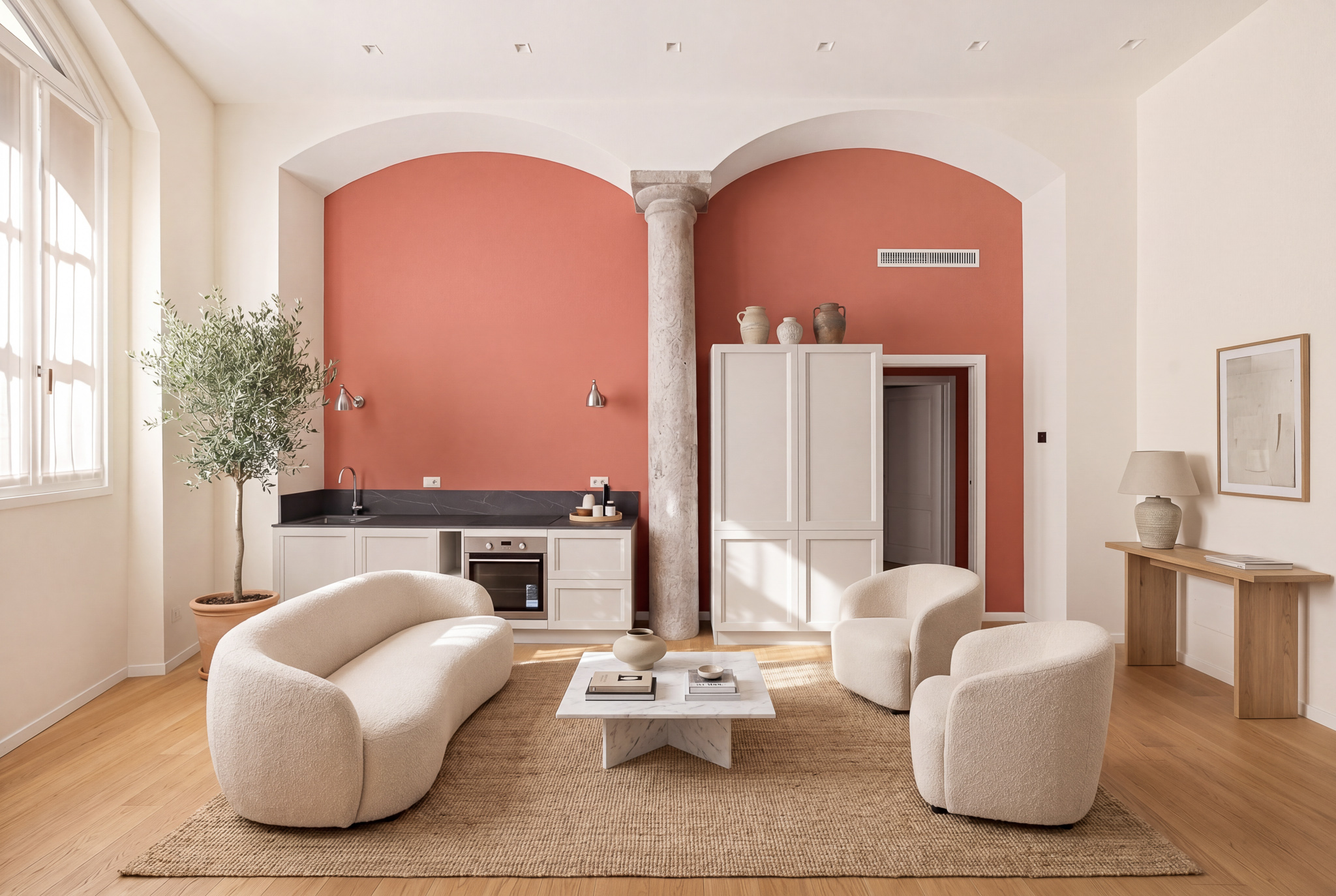
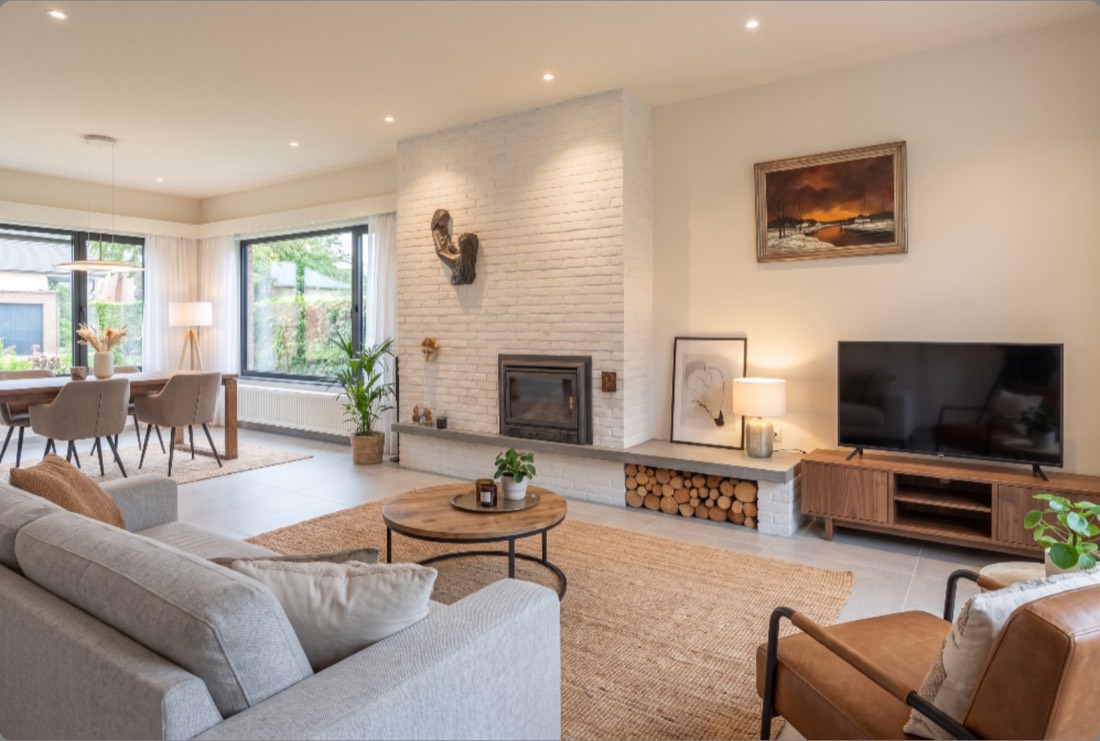
Bright living room with a white brick fireplace and large windows
★★★★★
it is mind-blowing how good it works. It is a big time saver for my editing work, and I now can provide my clients with fast en good virtual changes.
Xander Cavents Immoshots
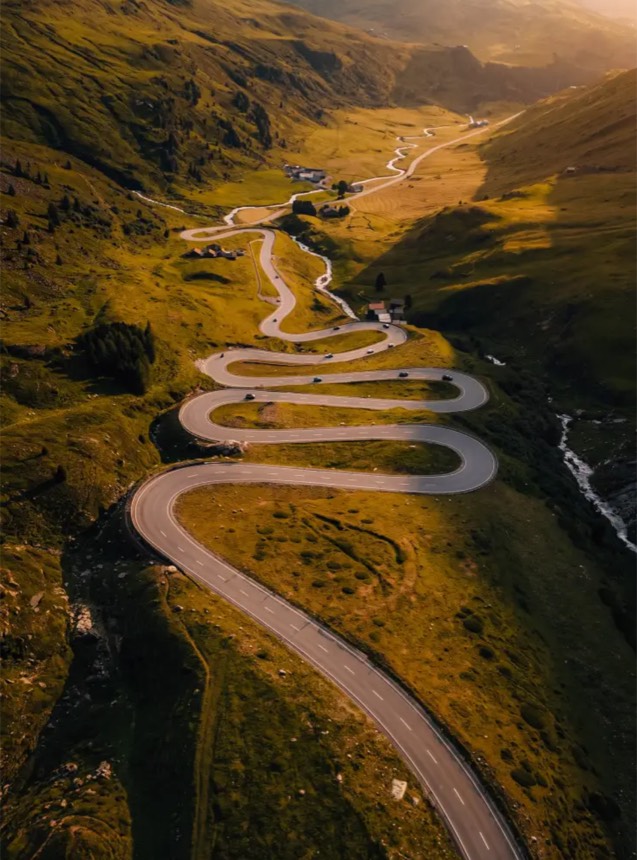
Aerial view of a switchback mountain road in Switzerland in warm light Switzerland — harsh midday sun, recovered
★★★★★
On a recent shoot in Switzerland, I encountered brutal conditions: harsh midday sun and hard, blown-out shadows that would normally write off an entire set of images. Instead of reshooting or discarding the shots, I used AI Light Lab to shift the apparent time of day in post-production. The results genuinely surprised me; what looked like unusable, contrasty photos transformed into clean, beautifully lit shots that felt as if they had been captured in completely different light. As a working photographer, that kind of recovery isn’t just a nice trick — it’s the difference between a wasted trip and deliverable work. It’s now a tool I reach for whenever conditions fight back.
Ben Moore Bemorephotography
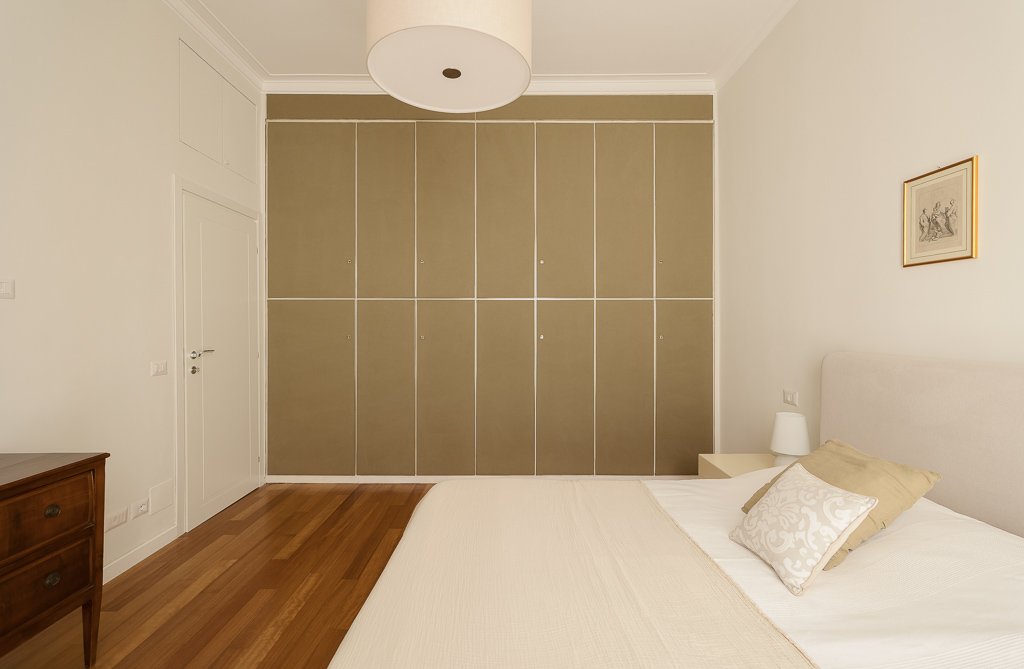
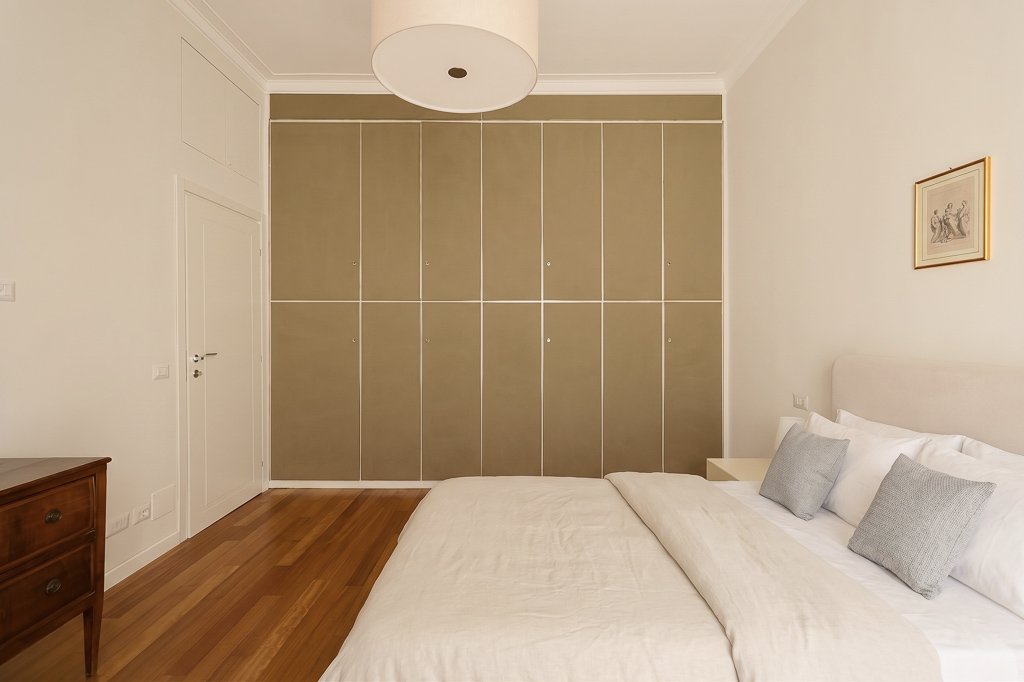
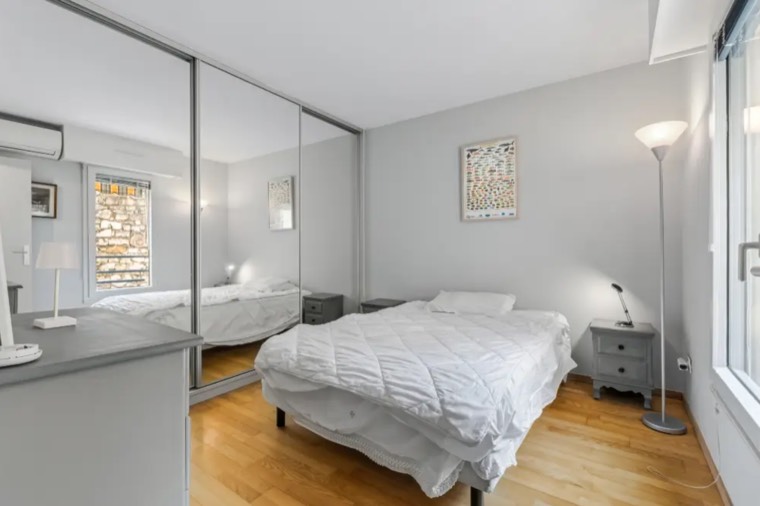
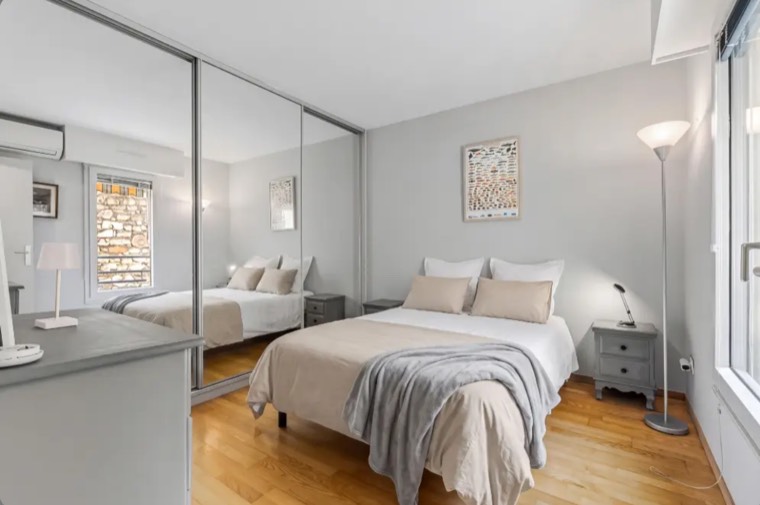
Bedroom with an unmade bed, reflected in a wall of mirrored wardrobe doors The same bedroom with the bed styled, and the change carried correctly into the mirror Bed linen replaced — reflection included
★★★★★
Ai light lab made very good result to replace the bed sheets of this bed and included perfectly the reflection into the mirror ! I made several attempts and 100% were well solved :-)
Josep Martin Real estate photographer
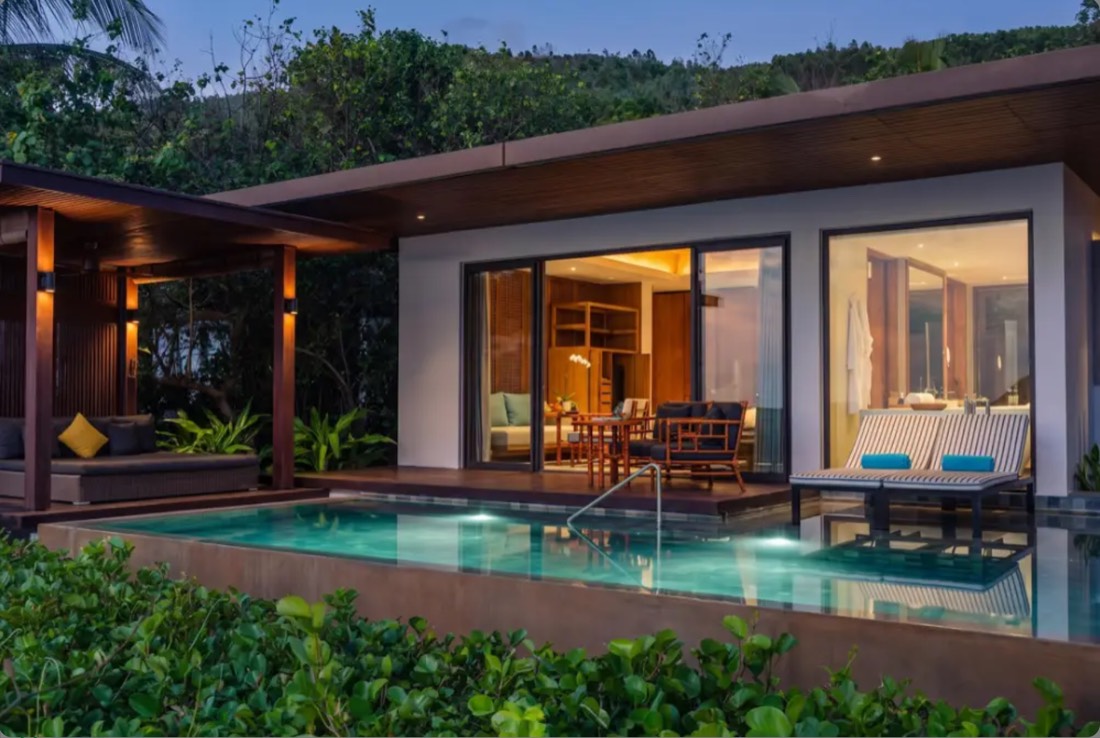
Resort villa and private pool at dusk, interior lights on
★★★★★
I have been experimenting with AI Light Lab for a few days now, running it on some of my hospitality interiors and exterior images, and have been extremely impressed. The new lightings created are very accurate to the original image, while adding in beautiful and fine details that transform the images into a new version that we may not have been able to physically capture on set. As a lifestyle photographer as well, I’d love to see how the presets can work on images with human subjects, without changing unneeded areas such as the faces. I’m excited to see what updates and developments come in the future and have been very happy to come across this tool. Thank you!
Quinn Ryan Mattingly QRM Photography
★★★★★
I use AI Light Lab in my real estate photography to create a pleasant and inviting lighting atmosphere. I especially like that this atmosphere can be consistently applied across multiple images. It’s also very convenient that the generated images appear directly in the Lightroom catalog. Overall, I highly recommend it—it’s well worth the money.
Andreas Beyer Lichträume Beyer
★★★★☆
I just tested Ai Light Lab and it surprised me. It simple to use, it is right in my LR, it is probably biggest plus for me - I dont need to leave Lightroom and it delivers what it promises - changing light atmosphere without any other halucinations. Used it just for fun, but i can imagine implement the Ai variantions in some cases also for my clients work.
Pavel Kudiváni @pavelkudivani
★★★★★
It’s been a great addition to my workflow. The staging function is excellent and all of the outputs are very high quality. I only wish there was a slider where you could choose how intense you want the edit.
Bec
★★★★★
Fast smooth and clean, speeds up my workflow
★★★★★
Used AI LightLab to experiment on some of my real estate photos. Achieved some nice results. The relight function is really good. Would definitely recommend
Joe Sungaila Lead Videographer
★★★★★
Fantastic tool which I use mainly for saving grey weather days with sunny exposures. Great ways to configure how the sun hits the property, create twilight shots. It has lots of other great features too: decluttering, virtual styling etc. Excited to get to know this amazing tool even better, it solves many problems.
★★★★★
I’ve been using AI LightLab as a Lightroom plugin and, overall, I find it a very convenient way to bring AI into a normal editing workflow. What I like most is how quick and simple it is. You can apply different AI treatments directly from Lightroom, see a small preview of the expected result, and get a finished-looking image with very little effort. Hallucinations are close to zero and I find it particularly useful for real estate photography, quick turnaround jobs, and situations where you want to automate parts of the editing process. I also like the one-time purchase + credits model. There’s no monthly subscription, so you can use it when you actually need it. The main thing to understand is that AI LightLab creates a new AI-generated image rather than modifying your original photographs. For me, this is its biggest limitation. The result isn’t always identical enough to the original to continue a complex workflow with additional exposures, layers or luminosity masks. The generated image also has its own resolution rather than simply keeping the original dimensions. Overall, I think AI LightLab is a very useful addition to Lightroom if you understand what it is designed to do. It can save a lot of time and make certain types of editing remarkably easy.
Alessandro Archphoto
★★★★★
AI Lightlab has come into my workflow when I need it the most, when weather doesn’t cooperate for weeks on end and I need a sunset photo. Using the Lighting effect to add a Sunset has worked well 95% of the time. I’ve also used AI Lightlab for virtual staging, when bedspreads were unsightly and would have made an otherwise beautiful bedroom look cheap. The credits are affordable when purchased in bulk. I definitely recommend giving it a try.

Some of these were submitted during a feedback campaign in which customers received 20 credits for their time, whatever they wrote.

Pricing

A license once. Credits as you go.

No subscription. Buy the plugin once, then spend credits only when you create an image.

1

License

Pay once, keep it forever: the plugin, every preset, all future updates.

Core License Most popular
$89
One-time · lifetime access + 20 credits to start
  • Full plugin access — all presets unlocked
  • Lifetime updates — every new preset and feature included
  • 2 computers / 1 user
  • 14-day money-back guarantee
Get Core License →
Complete Best value
$249
One-time · License + 500 credits + 20 welcome
  • Everything in the Core License
  • 520 total credits · ~260 key images in 4K
  • Save $50 vs buying them separately
  • 14-day money-back guarantee (less than 20 credits used)
Get Complete →
Free trial 10 credits included to try No card · no license key needed Try free →
2

Credits

Spent only when you create an image: 1 credit in 2K, 2 credits in 4K. They never expire.

500credits
Credits never expire
Full time
$209.99
250images in 4K
500images in 2K

Credits never expire · listing estimates assume about 6 key images per listing

Top up anytime with the Buy Credits button inside the plugin. A license is required.

Need a bigger credit pack, or licenses for a team?

[email protected]
Questions

Good to know.

It lives natively inside Lightroom Classic — your whole workflow stays in one place, with no exporting to other apps or websites and no files to juggle. That alone makes it far tidier, simpler and more intuitive than tools that send you out to a browser or a separate app.

And it's the only one built specifically for real estate and architectural photography — not a generic AI tool. Every preset is tested at least 300 times on real property and architecture shoots before it ever ships, and it's made by a working real-estate photographer who knows the job, so it solves the problems you actually have.

Yes. AI LightLab is a native plugin for Adobe Lightroom Classic. Select photos, choose a preset, enhanced files land back in your catalog — no external apps, no browser tabs, no Photoshop round-trips.

Generated photos always land in your Lightroom catalog, but they may not appear in your current view if you're filtering by folder or collection.

Fastest way: right-click the source photo in Lightroom → choose Go to Folder in Library → sort by File Name. The new files appear next to their originals with the preset name appended (e.g. IMG_001-twilight_hero.jpg). They're saved alongside the source file on disk, in the same folder.

▶ Watch the 30-second video walkthrough →

Tick the Consistent Retouch box when you process a batch. Currently supported on Bed Reset (same bedding style across every bedroom angle) and Season Change (same vegetation and sky across property shots). More presets are added in free updates as they're validated — no extra charge for existing owners.

Because we're tired of subscriptions too. Almost every tool now wants a monthly fee, whether you shoot ten listings that month or none at all.

With AI LightLab you buy the license once, then top up credits only when you need them. Credits never expire: a quiet month costs you nothing, a busy one simply uses more. No renewal dates, no automatic charges, no “use it or lose it”.

Honestly, no — but they get close. Roughly 95% of shots come out clean on the first pass. Behind every generation, an AI checker compares the result with your original and automatically runs it again if the room, the framing or the windows have changed, at no extra credit.

What can still slip through is the very smallest detail — see the next answer. Always look over a result before you deliver it.

Yes, sometimes. The AI redraws the whole image, so micro-details — tiny text and signs, distant cars, people far in the background, very fine patterns — often come out slightly altered or simplified. In the most extreme conversions, like turning day into night, it can occasionally add a small extra detail, such as one more light bulb than the real fixture has.

The AI checker stops anything that changes the room, but a detail this small can slip past it, just as it slips past the human eye. The good news: you're already inside Lightroom, so it's usually a few seconds' fix with the Remove tool. If you'd rather bring a detail back exactly as it was in the original, use a layer mask (see What if the AI changes an area I wanted to keep?).

Almost never. Clients look at the whole photo — on a phone, on a listing page, in a magazine spread — and when the light transforms the room, that's what they see. Practically nobody zooms in to 400% looking for a light switch.

That's not an excuse to skip the check: give your hero shots a quick look at 100% before delivery. But a tiny detail is rarely what decides whether a photo works.

Yes — a lot. The AI works on the image you send it, exactly as it looks when exported from Lightroom. The better the input, the better the result, with every preset.

From best to worst: a fully edited photo (exposure, white balance, lens corrections, verticals) > a photo with basic adjustments only > an untouched RAW. Spend a minute on the basics first: the AI builds on what it receives, it doesn't fix everything for you.

You're already inside Lightroom Classic — every AI result lands next to the original, ready for tone curves, local masks, exposure tweaks and your usual Develop adjustments. When Lightroom isn't enough, a single right-click sends both files to Photoshop as layers — full pixel-level control, native to your existing workflow.

If the AI changes an area you want to keep from the original — a specific window, a piece of furniture, a reflection — you don't have to redo the generation. Open the original and the AI result as layers in Photoshop, auto-align, and paint a layer mask to bring back exactly what you want. Precise, non-destructive, done in under two minutes.

  1. Open both shots as layers. Select original + AI result in Lightroom, right-click → Edit in Photoshop → Open as Layers.
  2. Auto-align layers. Select both, Edit → Auto-Align Layers → Auto. Done in seconds.
  3. Mask back what you want. Add a layer mask to the AI layer and paint black with a soft brush over the areas you want to restore from the original.
  4. Flatten & save. Back in Lightroom as a standard file — ready for Develop, masks, and export.

Adobe Lightroom Classic 10.0 or later, macOS or Windows. The cloud Lightroom CC is not supported.

Your originals are never touched. Each enhancement is imported as a new file in your catalog, named clearly (IMG_1234_Twilight_Hero_4K.jpg). Crop, mask, develop — like any other photo.

No. Images are transmitted over HTTPS and not stored after processing. We never use your photos to train models or for any purpose beyond the one enhancement you requested.

Never. One 2K enhancement = 1 credit, one 4K = 2.

14-day money-back on plugin licenses if you haven't used more than the 20 included welcome credits. Credit packs, as digital consumables, aren't refundable once used.

Partner program

Share AI LightLab. Earn $20 per license.

Photographers, educators and creators: recommend the plugin with your personal link. You get $20 for every Core or Complete license sold through it — and your audience gets 10% off automatically.

Become a partner →

Free to join · Payouts by Lemon Squeezy twice a month · Your own dashboard with clicks and sales

$20for every Core or Complete license sold through your link
10%off for your audience, applied automatically at checkout
90days of cookie tracking — you're credited even if they buy weeks later
Community · @ailightlab

See it in action, every week.

Real before/afters from real listings, new features the day they ship, quick workflow tips — it all lands on Instagram first.

Virtual twilight before/after Clear midday with fluffy clouds Sunrise exterior look Blue hour glow look
Follow on Instagram

Stop waiting for the light.
Make it.

10 free credits on the house. Light modification, retouch, variations and Consistency Engine — purpose-built for real-estate photography, inside Lightroom Classic. No credit card needed to start.

14-day refund · Credits never expire · Free lifetime updates