AI LightLab / Setup

Get started in five minutes.

One plugin, two modes. Start free with 10 trial credits. Paste a license key later to unlock your full account.
Download AI LightLab
macOS & Windows  ·  Lightroom Classic 10+  ·  Trial included
Step 01

Download & unzip.
Use the button above. You'll get AI_LightLab.zip — about 6 MB, same file on Mac and Windows.

  1. Double-click the zip to unzip — you'll get a folder called AI LightLab.lrplugin.
  2. Move it to a permanent location, e.g. Documents/Lightroom Plugins/.
Important: Don't place the plugin inside the Adobe application folder. Use a personal folder — Documents or Desktop.
Step 02

Install in Lightroom Classic.

  1. Open Lightroom Classic.
  2. Go to FilePlug-in Manager.
  3. Click Add.
  4. Select the AI LightLab.lrplugin folder and confirm.
  5. You'll see a green dot next to AI LightLab Credits · Installed and running.
  1. Open Lightroom Classic.
  2. Go to FilePlug-in Manager.
  3. Click Add.
  4. Select the AI LightLab.lrplugin folder and confirm.
  5. You'll see a green dot next to AI LightLab Credits · Installed and running.
Step 03

Trial or license.

Free trial: no activation needed — the plugin starts in trial mode with 10 free credits.

Have a license key? Paste it to unlock your full account:

  1. In FilePlug-in Manager, select AI LightLab Credits.
  2. Scroll to the License section on the right and paste your key.
  3. Click Activate License.
Tip: Basic works on up to 2 computers, Agency on 10. Deactivate a seat anytime to move machines.
Step 04

Process your first photo.

  1. Select one or more photos in your catalog.
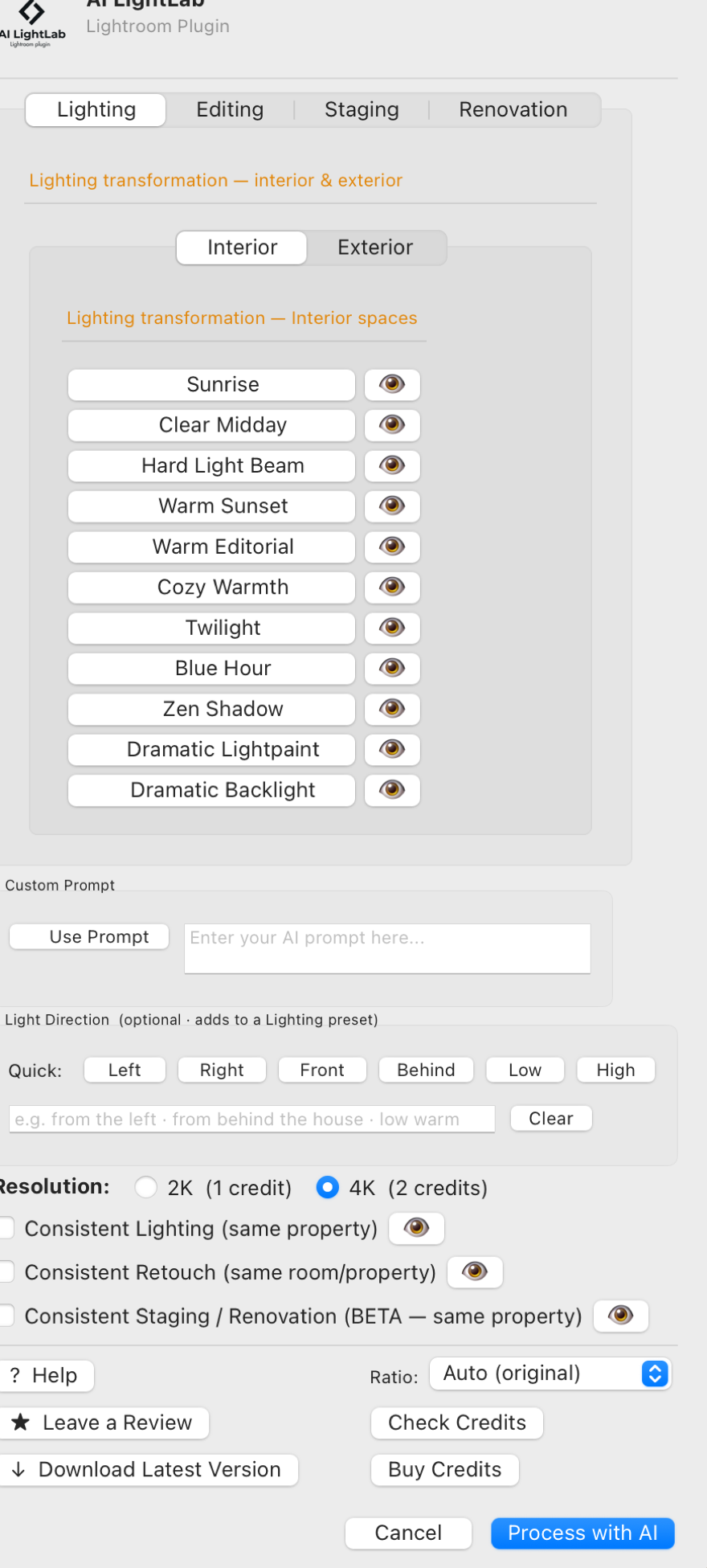
  2. Go to FilePlug-in ExtrasAI LightLab.
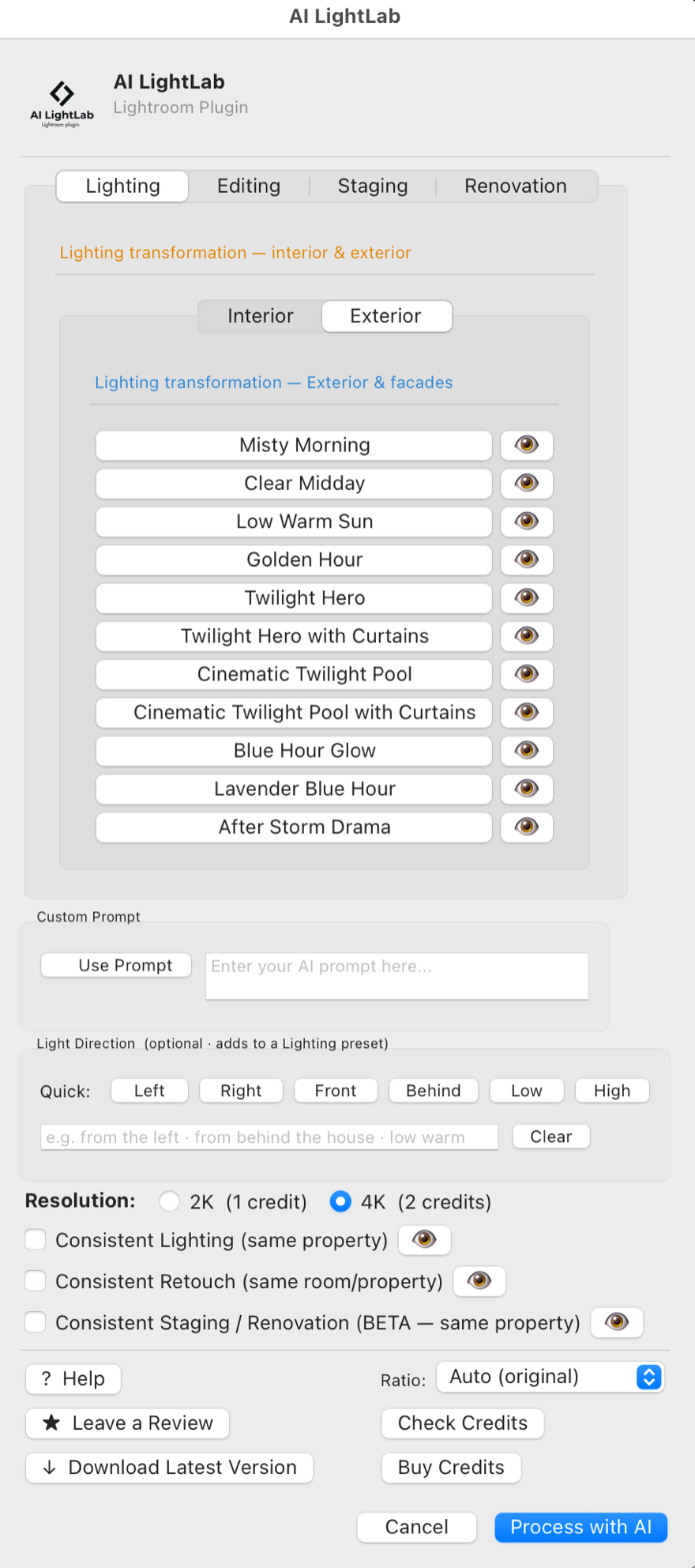
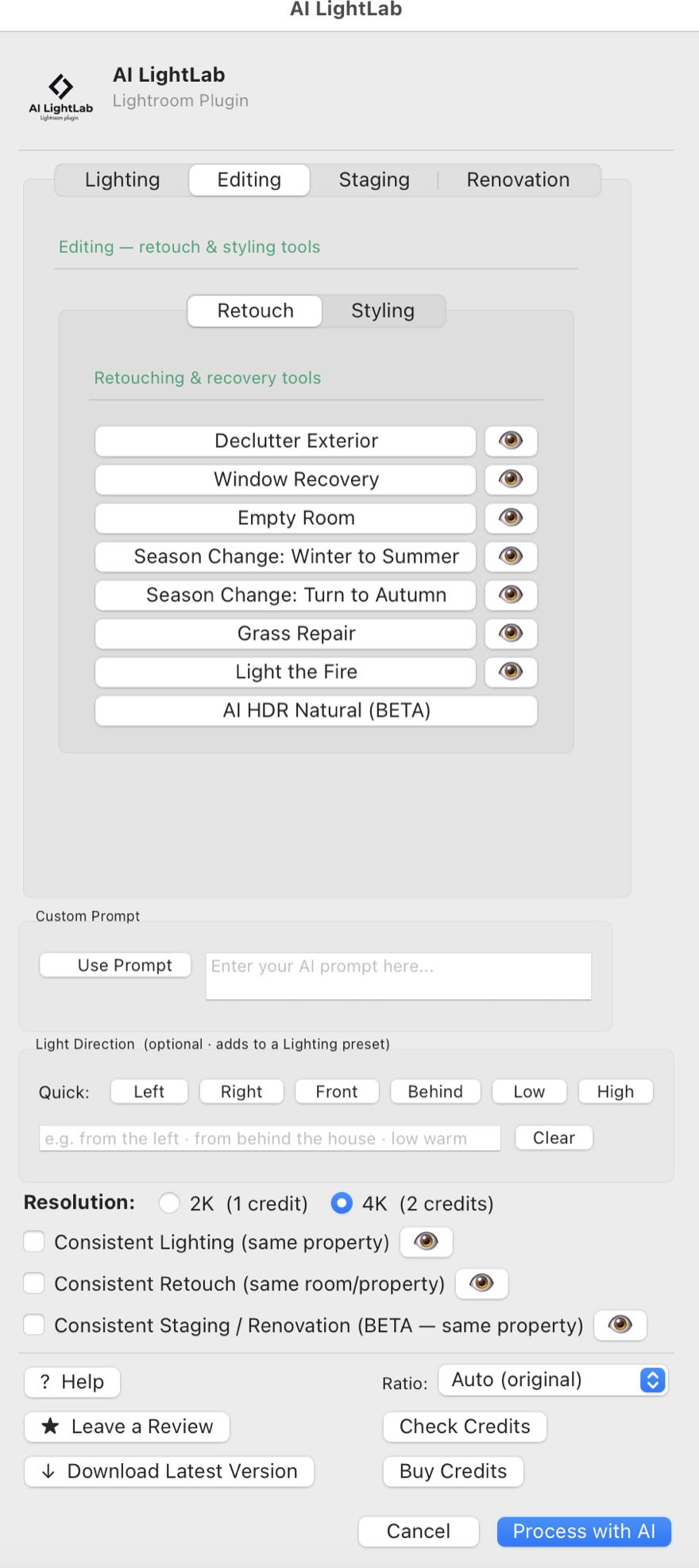
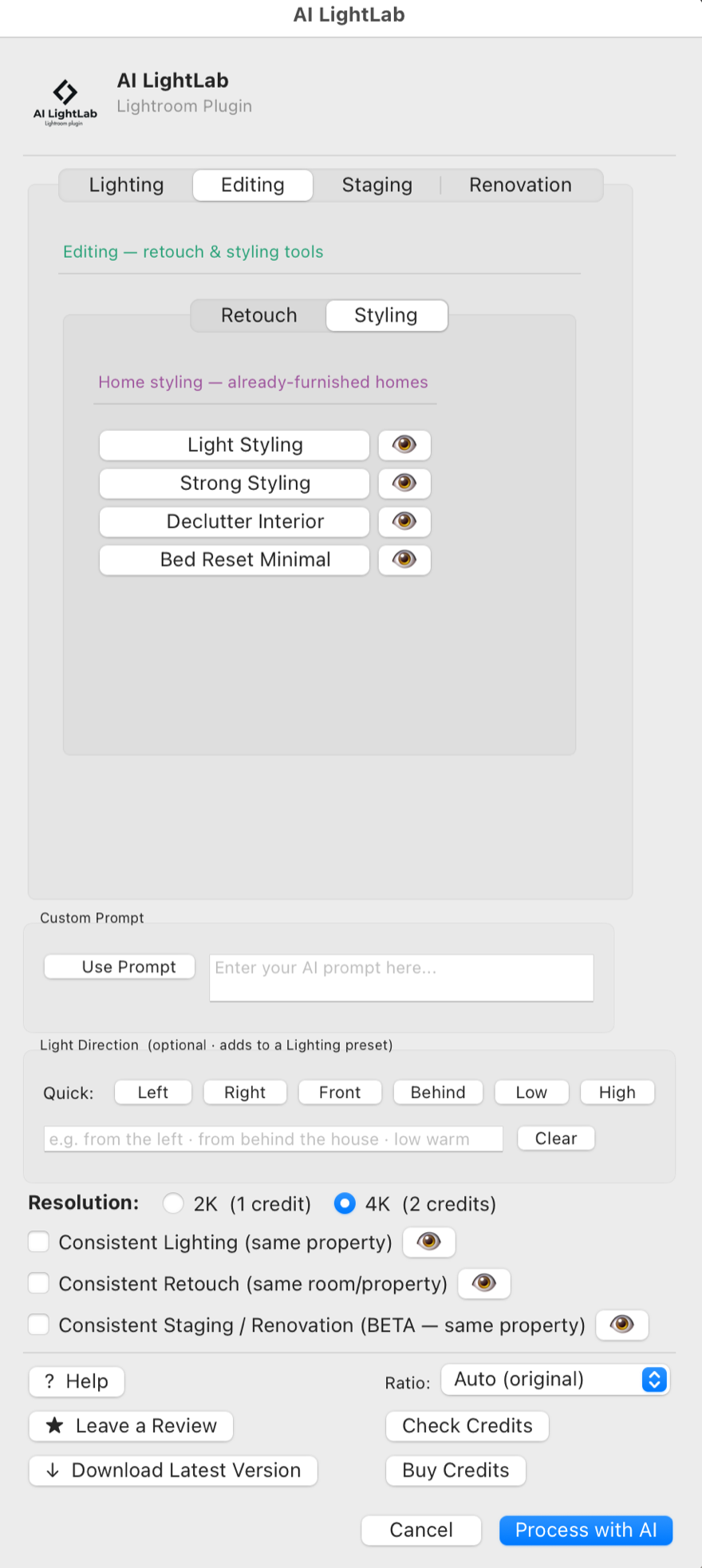
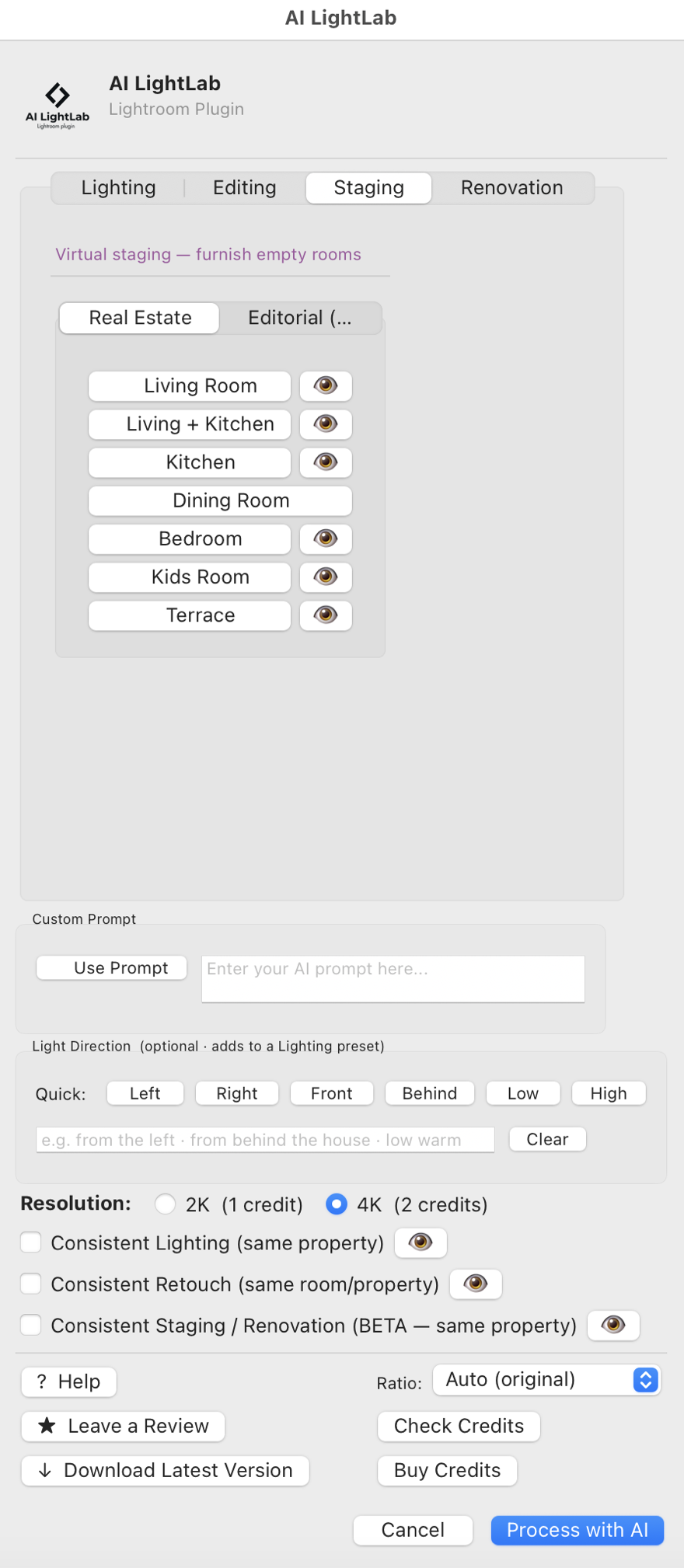
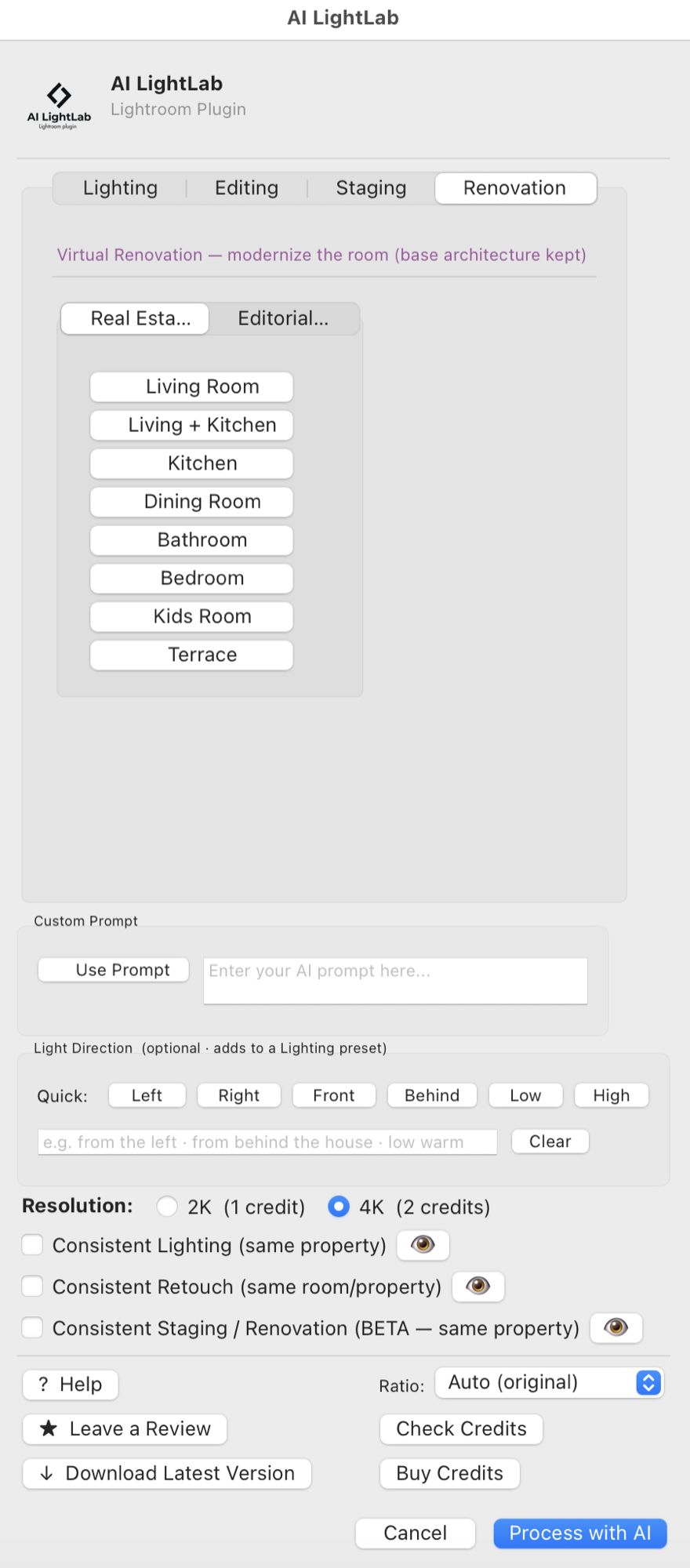
  3. Pick a preset from the tabs: Interior, Exterior, Retouch.
  4. Choose resolution: 2K (1 credit) or 4K (2 credits).
  5. Click Process with AI.
Keep editing. While AI works (30–180 seconds), you can keep editing other photos in Lightroom. The result lands in your catalog when ready.
Step 05

Buy more credits.

Trial: 10 credits. Basic license: 20 included. When you need more, use the Buy Credits button inside the plugin — your license is linked automatically.

Always buy from inside the plugin. This ensures credits are added to your account without manual matching.

After checkout, click Check Credits in the plugin to refresh the balance.

Troubleshooting

When something goes sideways.

Still stuck? Email [email protected] — human reply within a day.

! I can't find the generated photos

Generated files save on disk next to the original, with a name like IMG_1234_Twilight_Hero_4K.jpg. They're also imported into the catalog automatically.

This is most common when processing from a Collection, Smart Collection, or filtered preview — you're not looking at the physical folder.

How to find them:
  • In Library, open the Folders panel and click the folder of your originals.
  • Set Sort > File Name at the top of the grid — they'll appear next to the source (same base name, different suffix).
  • If still missing, right-click the folder → Synchronize Folder….

Originals are never modified, overwritten or moved — the generated files are on disk, just ask Lightroom to show them.

Make sure you selected the .lrplugin folder itself (not a file inside). Confirm you're using Lightroom Classic — not cloud Lightroom.

Check for extra spaces when pasting. If the issue persists, email [email protected] with your order number.

2K usually takes 10–60 seconds; 4K up to 3 minutes. If it exceeds 5 minutes, cancel and retry — servers may be overloaded. Credits are refunded automatically on timeout.

AI results vary slightly each time. Try the same preset again, or use the Custom Prompt field for more control.

Yes — same file, both platforms. Basic = 2 machines, Agency = 10.

No — Lightroom can't attach Content Credentials to AI-generated photos. Disable them on the export of AI-processed files.

Setup, done.

Lightroom Classic now generates twilight, golden hour, and retouch — without ever leaving the catalog.

14-day refund · Credits never expire · Free updates